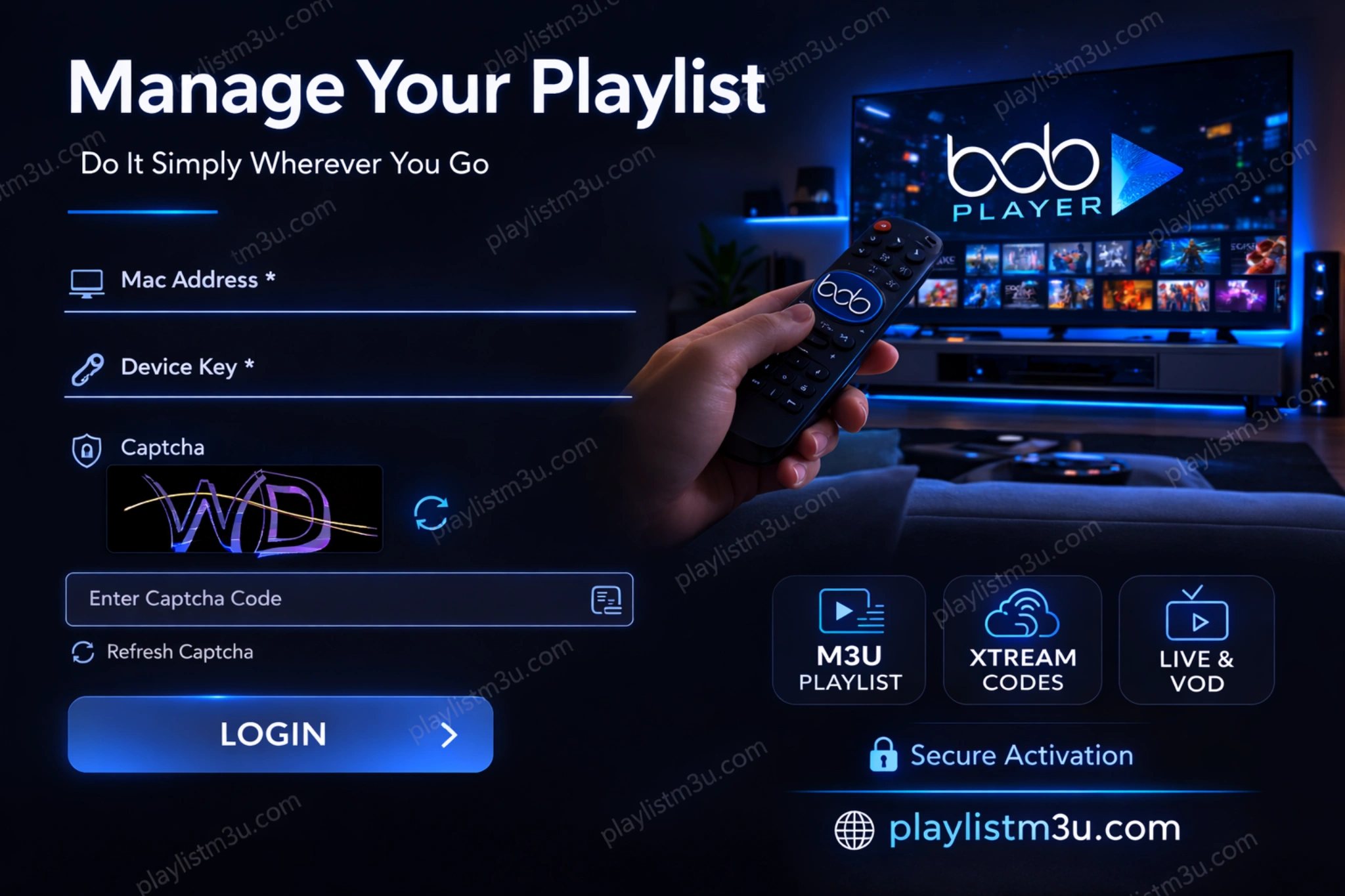
In the world of IPTV applications, Bob Player stands out as one of the most popular solutions for watching your favorite content on Smart TVs and other connected devices. This modern app is designed to deliver a smooth and reliable streaming experience, but it requires a simple yet essential activation process before you can start using it.
Understanding how to activate Bob Player is the first and most important step to fully enjoying this powerful platform. Unlike some applications that provide preloaded content, Bob Player works as a media player that allows you to upload your own M3U playlist or Xtream Codes credentials. This gives you maximum flexibility to customize your viewing experience according to your IPTV subscription.
Bob Player Compatibility
- ✓ Samsung Smart TVs
- ✓ LG Smart TVs
- ✓ Android TV boxes
- ✓ Amazon Fire Stick
- ✓ Apple TV
- ✓ And many other devices
This detailed guide walks you step by step through the activation process, ensuring you can start streaming your favorite content quickly and efficiently.
Requirements Before Activation
Before starting the Bob Player activation process, make sure you have everything ready to ensure a smooth setup experience.
Essential Requirements
- Compatible Device: Smart TV, Android TV Box, Fire Stick, or other supported device
- Stable Internet Connection: Fast and reliable internet for downloading and streaming
- Valid IPTV Subscription: M3U link or Xtream Codes credentials from your provider
- Web Browser Access: Computer, smartphone, or tablet to access the activation portal
Step 1: Download and Install Bob Player
The first step in activating Bob Player is installing the application on your device. The installation method varies depending on your device type.
Installation from Official App Stores (Recommended)
The safest and most reliable way to install Bob Player is through your device's official app store. This ensures you get the authentic, unmodified version of the app with all security updates.
- Samsung Smart TV: Download from the Samsung App Store
- LG Smart TV: Use the LG Content Store
- Android TV: Download from the Google Play Store
- Amazon Fire Stick: Search in the Amazon App Store
Alternative Installation via Downloader (For Fire Stick / Android Devices)
If your device doesn't provide direct access to the app store or if Bob Player isn't available in your region's store, you can use the Downloader app method.
- Install the Downloader app by AFTVnews from your device's app store
- Enable "Unknown Sources" in Settings > Security (required for APK installation)
- Open Downloader and enter the code: 815778
- The app will redirect you to the Bob Player download page
- Click "Install" after the APK file downloads
- Wait for installation to complete
⚠️ Security Warning
Only download Bob Player from official sources or trusted repositories. Unofficial versions may contain malware or modified code that compromises your device security and privacy.
Step 2: Launch the App and Get the Activation Code
After successfully installing Bob Player, you'll need to launch it and retrieve your unique activation information. This is a crucial step that connects your device to the Bob Player service.
Bob Player activation screen displaying MAC Address, Device Key, and Activation Code
Retrieving Your Activation Information
- Open Bob Player on your device
- On the first launch, the home screen will automatically display your activation details
- You'll see three important pieces of information:
- MAC Address: Your device's unique identifier
- Device Key: A security key specific to your installation
- Activation Code: A temporary code for initial setup
- Carefully write down this information or take a photo of the screen
- Keep the app open on this screen while you complete the web activation
💡 Pro Tip
Take a clear photo of the activation screen with your smartphone. This ensures you have accurate information and can easily reference it during the web activation process without switching between devices.
Step 3: Activate Bob Player via the Official Website
With your activation information ready, it's time to complete the activation process through Bob Player's official website. This step links your device to your account and enables full functionality.
Access the Activation Portal
Using a separate device (smartphone, tablet, or computer), follow these steps:
- Open your web browser
- Navigate to the official website: https://bobplayer.com
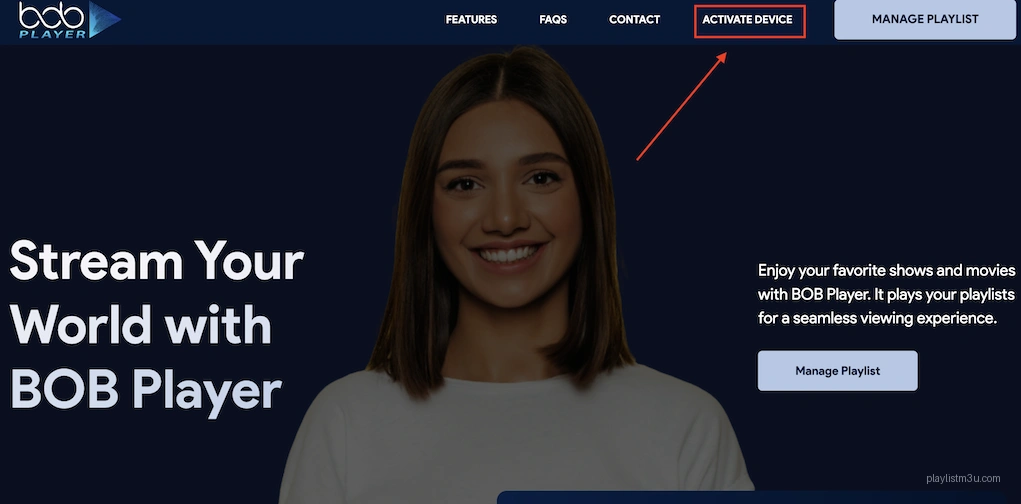
- Look for the "Activate Device" section on the homepage
- Click the activation button to access the portal
Enter Activation Information
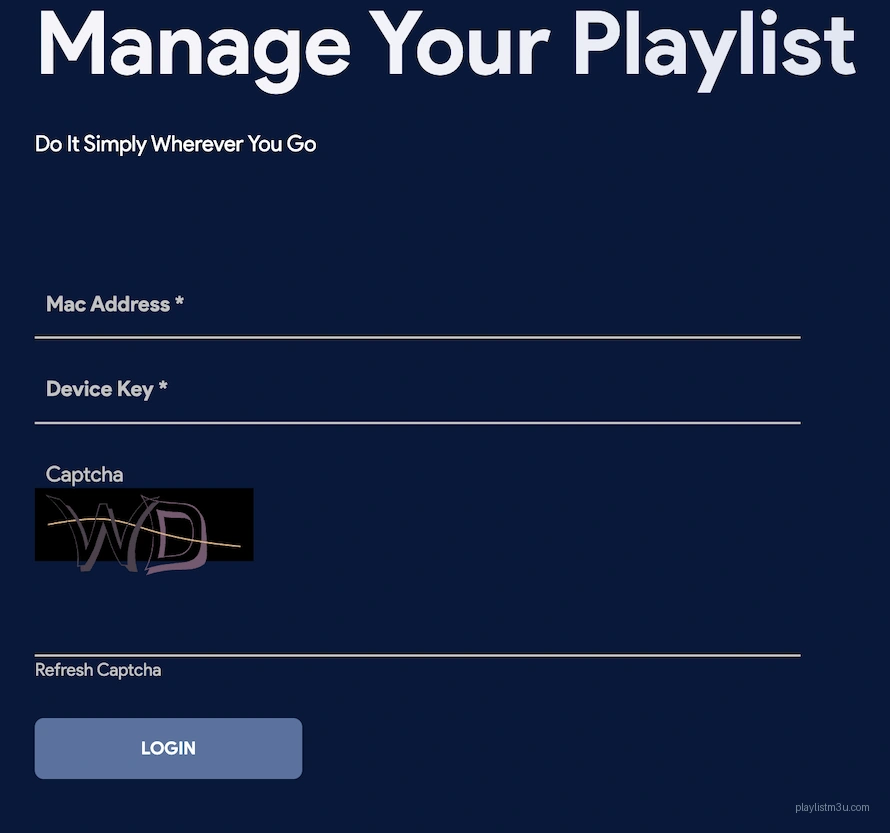
In the activation form, you'll need to provide the information displayed on your TV screen:
- Enter the MAC Address exactly as shown (including colons or dashes)
- Enter the corresponding Device Key
- Complete the CAPTCHA verification if required
- Double-check all entries for accuracy
- Click "Login" or "Activate" to continue
⚠️ Important
The MAC Address and Device Key are case-sensitive and must be entered exactly as displayed. Even a single incorrect character will prevent activation. Take your time and verify each entry before submitting.
Step 4: Link Your IPTV Subscription
Once your device is activated, you need to connect your IPTV service to Bob Player. This step tells the app where to get your channel list and streaming content.
Bob Player interface for adding M3U playlists and Xtream Codes credentials
Choose Your Playlist Type
Bob Player supports two main methods for connecting to IPTV services:
Option 1: M3U Playlist
If your IPTV provider gave you an M3U URL:
- Select "M3U Playlist" as your connection method
- Paste the M3U playlist URL provided by your IPTV supplier
- Give your playlist a descriptive name (e.g., "My IPTV Service")
- Click "Save" to store the settings
Option 2: Xtream Codes
If your provider uses Xtream Codes API:
- Select "Xtream Codes" as your connection method
- Enter the Server URL (usually starts with http:// or https://)
- Enter your Username
- Enter your Password
- Name your playlist for easy identification
- Click "Save" to complete the setup
What's the Difference?
M3U Playlists are simple URL links that contain your channel list. Xtream Codes is a more advanced API that provides additional features like VOD, series, and EPG data. Your IPTV provider will tell you which method to use.
Step 5: Finalize Activation
You're almost done! The final step involves completing the license activation and synchronizing your content.
Free Trial and License
Bob Player typically offers a 7-day free trial to test all features before committing to a purchase:
- The free trial starts automatically after activation
- You'll have full access to all Bob Player features
- After the trial period ends, you'll need to purchase a license
- License options usually include 12-month or lifetime plans
- Payment is processed securely through the Bob Player website
- You'll receive activation confirmation via email
Restart and Synchronize
To complete the activation process:
- Close Bob Player completely on your device
- Restart the Bob Player app
- Wait a few seconds for synchronization with the server
- Your live channels and VOD content should now appear
- Browse through your channels to verify everything loaded correctly
Congratulations! Your Bob Player activation is complete, and you're ready to start streaming.
Troubleshooting Common Activation Issues
Even with careful setup, you might encounter some issues during activation. Here are solutions to the most common problems.
Invalid Activation Code
Cause: Incorrect MAC Address or Device Key entered during web activation.
Solution: Double-check every character of your MAC Address and Device Key. They must match exactly what's displayed on your TV screen. Pay special attention to similar-looking characters like 0 (zero) and O (letter O), or 1 (one) and l (lowercase L).
Activation Code Expired
Cause: Activation codes have limited validity, typically 10-15 minutes.
Solution: Close and restart the Bob Player app to generate a new activation code. Complete the web activation process more quickly this time.
Internet Connection Problems
Cause: Slow, unstable, or interrupted internet connection.
Solution: Check your WiFi signal strength or move your device closer to your router. If possible, use a wired Ethernet connection for more stable connectivity. Run a speed test to ensure you have at least 10 Mbps download speed.
Playlist Not Recognized
Cause: Invalid playlist format, incorrect URL, or expired subscription.
Solution: Verify the M3U URL or Xtream Codes credentials with your IPTV provider. Make sure your subscription is active and hasn't expired. Test the playlist URL in a web browser to confirm it's accessible.
Geolocation Error
Cause: Regional restrictions from your IPTV provider or Bob Player service.
Solution: Confirm with your IPTV provider that their service is available in your region. Some providers restrict access to specific countries or regions. Contact Bob Player support if the issue persists.
Device Not Supported
Cause: Your device model or operating system version isn't compatible with Bob Player.
Solution: Check Bob Player's official website for the list of supported devices. Update your device's firmware to the latest version. Consider using an alternative device if yours isn't supported.
Advantages of Bob Player
Understanding what makes Bob Player a popular choice helps you appreciate its features and capabilities.
Modern and User-Friendly Interface
Bob Player features a clean, TV-optimized interface designed specifically for smooth navigation using a remote control. The layout is intuitive, with clear categories and easy-to-read text that works well on large TV screens.
Wide Compatibility
Bob Player supports most major streaming platforms including Samsung and LG Smart TVs, Android TV, Amazon Fire Stick, Apple TV, and more. This flexibility means you can use the same app across multiple devices in your home.
Performance and Stability
The app is optimized to reduce buffering and provide smooth playback, even in HD and 4K resolution. Bob Player uses efficient video decoding and adaptive streaming to deliver the best possible quality based on your internet speed.
Full Format Support
Bob Player supports multiple playlist and streaming formats:
- M3U and M3U8 playlists
- Xtream Codes API login
- EPG (Electronic Program Guide) integration
- VOD (Video on Demand) content
- TV series with season/episode organization
Regular Updates
The Bob Player development team frequently releases updates to improve performance, fix bugs, and add new features. Keeping your app updated ensures you always have the best experience.
Tips to Optimize Your Streaming Experience
After activation, follow these tips to get the most out of Bob Player.
Choose a Reliable IPTV Provider
Your streaming quality depends heavily on your IPTV service. Make sure your provider offers:
- Stable and fast servers with minimal downtime
- Responsive customer support for technical issues
- A wide channel selection matching your interests
- Confirmed compatibility with Bob Player
- Regular updates to channel lists and EPG data
Optimize Your Internet Connection
Network quality directly impacts streaming performance:
- Use a wired Ethernet connection whenever possible for maximum stability
- Ensure at least 25 Mbps download speed for 4K streaming
- Place your router close to your streaming device or use WiFi extenders
- Avoid heavy bandwidth usage from multiple devices simultaneously
- Close background apps that might be using internet bandwidth
Adjust App Settings
Fine-tune Bob Player settings for optimal performance:
- Set video quality according to your internet speed (auto-adjust is usually best)
- Configure buffer size if the option is available in settings
- Customize the interface layout to your preference
- Enable EPG notifications to never miss your favorite programs
- Organize channels into custom groups for easier navigation
Maintenance and Security
Keep Bob Player running smoothly with regular maintenance:
- Regularly update Bob Player to the latest version
- Backup your playlist settings and favorites
- Clear app cache periodically to free up storage
- Use only legal and authorized IPTV sources
- Never share your activation codes with third parties
- Monitor your subscription expiration dates
Optimization Checklist
- ✓ Reliable IPTV provider with good reviews
- ✓ Wired Ethernet connection (preferred)
- ✓ 25+ Mbps internet speed for HD/4K
- ✓ Latest Bob Player version installed
- ✓ App cache cleared regularly
- ✓ EPG data updated
- ✓ Channels organized into groups
- ✓ Favorites list created
Frequently Asked Questions
How long does Bob Player activation take?
The entire activation process typically takes 5-10 minutes if you have all the required information ready. The actual activation on the website is instant, but downloading channel lists may take a few minutes depending on your playlist size.
Can I activate Bob Player on multiple devices?
Yes, but each device requires its own activation. Some Bob Player license plans allow multiple device activations, while others are limited to a single device. Check your license terms for specific details.
Do I need to reactivate Bob Player after updates?
No, app updates don't require reactivation. Your activation remains valid after updating to newer versions. However, if you uninstall and reinstall the app, you may need to go through the activation process again.
What happens if my activation code expires?
Activation codes are temporary and typically expire after 10-15 minutes. If yours expires, simply restart the Bob Player app to generate a new code. There's no limit to how many codes you can generate.
Is Bob Player activation free?
The activation process itself is free, and Bob Player usually offers a 7-day free trial. After the trial, you'll need to purchase a license to continue using the app. License prices vary depending on the plan duration.
Can I use Bob Player without an IPTV subscription?
No, Bob Player is a media player that requires an IPTV subscription to function. It doesn't provide content itself—it only plays content from the IPTV service you subscribe to.
Conclusion
Now you know exactly how to activate Bob Player thanks to this complete guide. While the activation process is straightforward, it's important to carefully follow each step to ensure everything works correctly.
From installation to playlist configuration, each phase contributes to creating a personalized and high-performance streaming experience. Bob Player remains a strong choice for users looking for a modern, stable IPTV player compatible with most connected devices.
The secure activation process and free trial period allow you to test the service before committing to a license. Take advantage of the trial to explore all features and ensure Bob Player meets your streaming needs.
For the latest activation updates and detailed information, always refer to the official website at https://bobplayer.com. Their support team can assist with any activation issues you might encounter.
Activate Bob Player today and transform your home entertainment experience with seamless IPTV streaming. With proper setup and optimization, you'll enjoy smooth, high-quality streaming of all your favorite content.