Why Create Your Own M3U Playlist?
Creating your own M3U playlist gives you complete control over your IPTV channels. You can organize streams exactly how you want, add custom channel names, and include only the content you actually watch.
What You'll Need
- A text editor (Notepad, VS Code, or any plain text editor)
- Stream URLs for the channels you want to include
- Basic understanding of the M3U format
M3U Playlist Structure
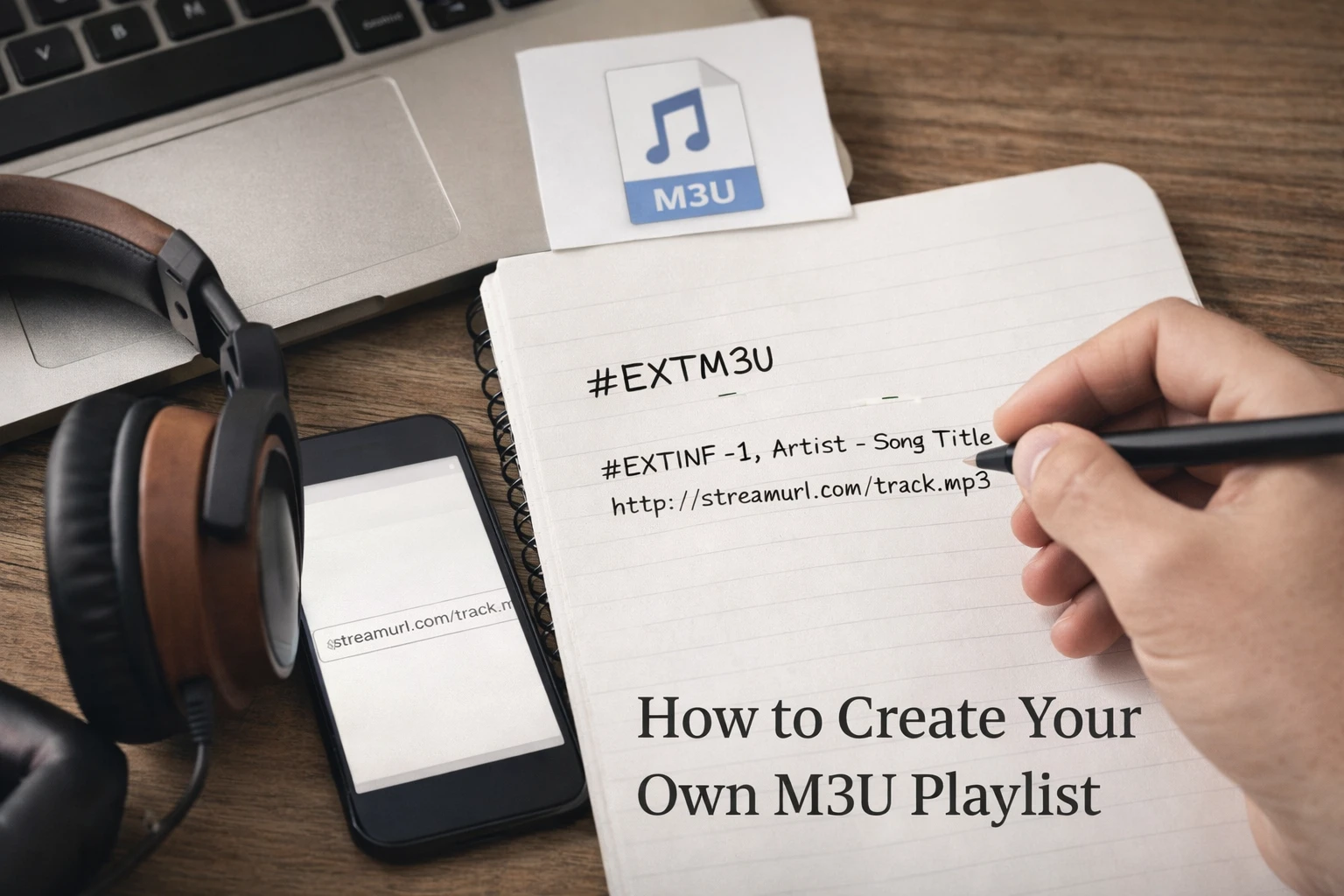
An M3U playlist is a simple text file with a specific structure. Here's the basic format:
#EXTM3U
#EXTINF:-1,Channel Name
http://stream-url.com/channel.m3u8
Breaking Down the Format
#EXTM3U- Header that identifies the file as an M3U playlist#EXTINF:-1- Extended information tag (-1 means unlimited duration)Channel Name- The display name for your channelhttp://stream-url.com- The actual stream URL
Step-by-Step: Creating Your Playlist
Step 1: Create a New Text File
Open your text editor and create a new file. Save it with the .m3u or .m3u8 extension (e.g., myplaylist.m3u8).
Step 2: Add the Header
Start your file with the M3U header:
#EXTM3UStep 3: Add Your Channels
For each channel, add an EXTINF line followed by the stream URL:
#EXTINF:-1,BBC News
http://example.com/bbc-news.m3u8
#EXTINF:-1,CNN
http://example.com/cnn.m3u8
Step 4: Add Advanced Attributes (Optional)
You can include additional attributes for better organization:
#EXTINF:-1 tvg-id="bbc1" tvg-logo="logo.png" group-title="News",BBC News
http://example.com/bbc-news.m3u8
Advanced M3U Features
Channel Logos
Add logos to your channels using the tvg-logo attribute:
#EXTINF:-1 tvg-logo="http://example.com/logo.png",Channel NameChannel Groups
Organize channels into categories:
#EXTINF:-1 group-title="Sports",ESPN
#EXTINF:-1 group-title="Sports",Fox Sports
EPG Integration
Link channels to electronic program guide data:
#EXTINF:-1 tvg-id="channel.id" tvg-name="Channel",Channel NameBest Practices
- Use UTF-8 encoding (save as .m3u8) for international characters
- Test each stream URL before adding it to your playlist
- Keep channel names clear and consistent
- Organize channels into logical groups
- Include logos for a better visual experience
- Regularly update and maintain your playlist
Testing Your Playlist
Once you've created your playlist, test it in an IPTV player like VLC:
- Open VLC Media Player
- Go to Media → Open File
- Select your M3U file
- Check that all channels load correctly
Conclusion
Creating your own M3U playlist is straightforward once you understand the format. Start simple with basic channel entries, then add advanced features as needed. With your custom playlist, you'll have complete control over your IPTV experience.