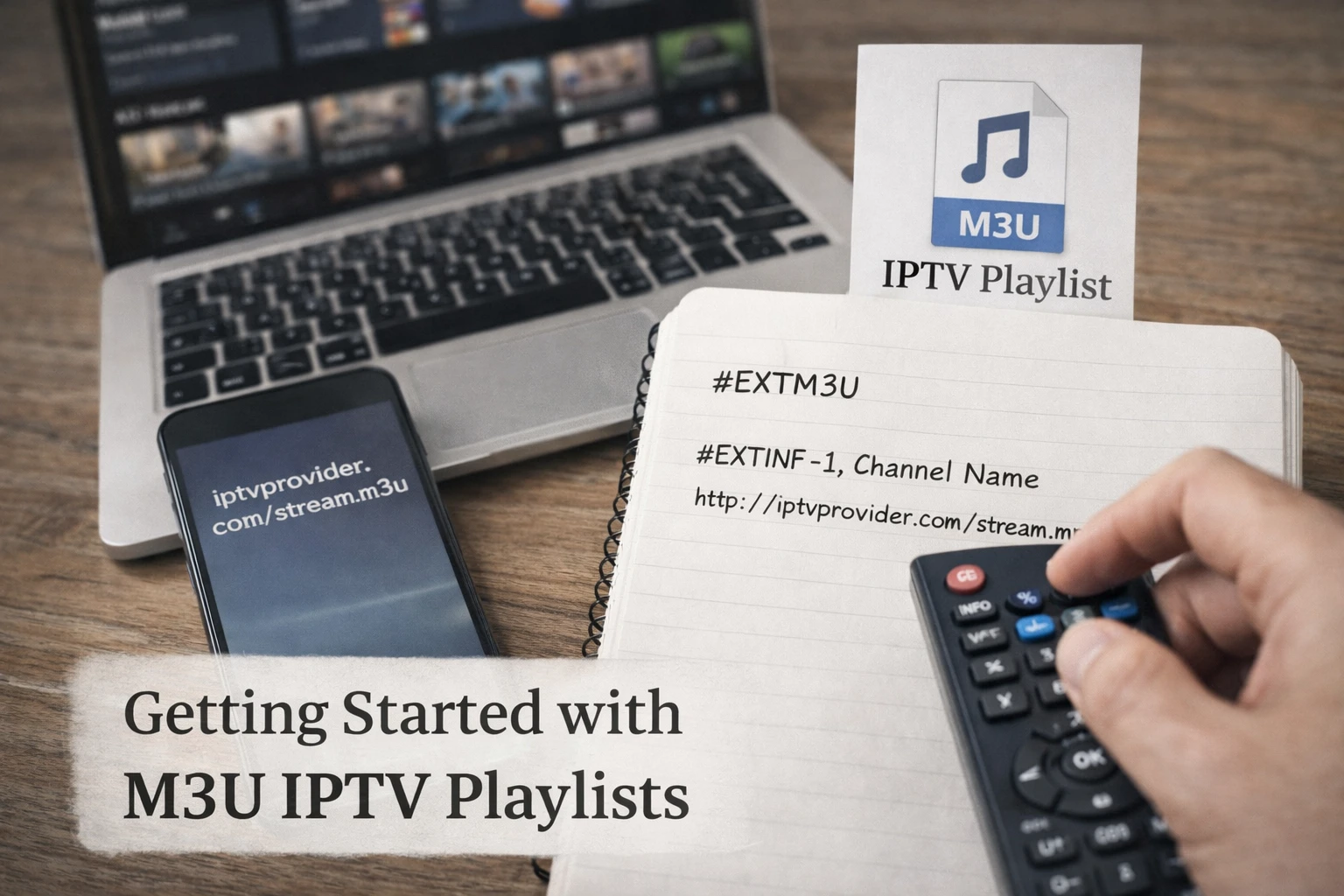
What is an M3U Playlist?
M3U (MP3 URL or Moving Picture Experts Group Audio Layer 3 Uniform Resource Locator) is a computer file format for multimedia playlists. Originally designed for audio files in the 1990s, M3U playlists have evolved to become the standard format for IPTV streaming, live TV channels, and video-on-demand content.
An M3U playlist file acts as a container that holds URLs or file paths to media streams. When you open an M3U file in a compatible IPTV player, it reads the playlist and connects to the streaming sources, allowing you to watch live TV channels, movies, and series without downloading them.
Understanding the M3U Format
An M3U file is a plain text file with a .m3u or .m3u8 extension that contains information about media streams. Each line in the file represents either a comment (starting with #), a directive, or a URL to a media file or live stream. The simplicity of the text-based format makes M3U playlists easy to create, edit, and share.
Basic M3U Structure and Syntax
A typical M3U playlist starts with the #EXTM3U header tag and contains entries with #EXTINF tags followed by stream URLs. Here's the basic structure:
#EXTM3U
#EXTINF:-1 tvg-id="channel1" tvg-name="Channel Name" tvg-logo="logo.png" group-title="Entertainment",Channel Name
http://example.com/stream.m3u8

#EXTINF:-1 tvg-id="channel2" tvg-name="Sports Channel" tvg-logo="sports.png" group-title="Sports",Sports Channel
http://example.com/sports-stream.m3u8
M3U Playlist Tags Explained
- #EXTM3U - Header tag indicating this is an extended M3U playlist file
- #EXTINF - Information tag for each channel or stream entry
- tvg-id - Unique identifier for EPG (Electronic Program Guide) matching
- tvg-name - Channel name for EPG data
- tvg-logo - URL or path to channel logo image
- group-title - Category or group name for organizing channels
- -1 - Duration in seconds (-1 means live stream with no fixed duration)
How to Use M3U Playlists for IPTV Streaming
To use an M3U playlist for IPTV streaming, you'll need an IPTV player application that supports the M3U format. Popular IPTV players include VLC Media Player, Kodi, Perfect Player, TiviMate, IPTV Smarters Pro, GSE Smart IPTV, and many others available for various platforms.
Steps to Load an M3U Playlist
- Obtain M3U Playlist: Download the M3U file or copy the M3U playlist URL from your IPTV provider
- Choose IPTV Player: Install a compatible IPTV player on your device (smartphone, tablet, smart TV, or computer)
- Open Player Settings: Navigate to the playlist, network stream, or add source option in your player
- Add M3U Source: Upload the M3U file or paste the M3U URL into the player
- Load Playlist: Wait for the player to parse and load all channels from the playlist
- Start Streaming: Browse channels and start watching your favorite live TV content
M3U vs M3U8: What's the Difference?
M3U8 is essentially an M3U playlist file encoded in UTF-8 character encoding. The main difference between M3U and M3U8 is character encoding support:
- M3U: Uses standard ASCII encoding, limited to basic Latin characters
- M3U8: Uses UTF-8 encoding, supports international characters, special symbols, and multiple languages
M3U8 is the preferred format for modern IPTV streaming because it handles international channel names, descriptions with special characters, and multilingual content better. Most IPTV services now use M3U8 format for better compatibility and broader language support.
Types of M3U Playlists
Local M3U Playlists
Local M3U playlists contain file paths to media files stored on your device or local network. These are useful for organizing your personal video library or local media collection.
Remote M3U Playlists (M3U URLs)
Remote M3U playlists contain URLs to online streaming sources. IPTV services provide M3U URLs that your player can access to stream live TV channels and VOD content over the internet.
HLS (HTTP Live Streaming) Playlists
HLS playlists use the M3U8 format to deliver adaptive bitrate streaming. The playlist contains links to video segments that the player downloads and plays sequentially, adjusting quality based on your internet speed.
Compatible IPTV Players for M3U Playlists
Many IPTV players support M3U and M3U8 playlist formats across different platforms:
- VLC Media Player: Free, cross-platform player for Windows, Mac, Linux, Android, iOS
- TiviMate: Premium Android IPTV player with advanced EPG and recording features
- IPTV Smarters Pro: Popular multi-platform player with user-friendly interface
- GSE Smart IPTV: Feature-rich player for iOS and Android devices
- Perfect Player: Customizable IPTV player for Android and Windows
- Kodi: Open-source media center with IPTV add-ons
- IBO Player: Modern IPTV player with EPG support
Creating Your Own M3U Playlist
You can create custom M3U playlists using any text editor. Simply follow the M3U format structure and add your stream URLs. Save the file with a .m3u or .m3u8 extension.
Example Custom M3U Playlist:
#EXTM3U

#EXTINF:-1 group-title="News",BBC News
http://example.com/bbc-news.m3u8

#EXTINF:-1 group-title="Sports",ESPN
http://example.com/espn.m3u8

#EXTINF:-1 group-title="Movies",Movie Channel
http://example.com/movies.m3u8
Best Practices for M3U IPTV Playlists
- Use Legal Sources: Always use reliable and legal IPTV sources with proper licensing
- Organize Channels: Keep your playlists organized with clear channel names and group categories
- Regular Updates: Update your playlists regularly to remove dead streams and add new channels
- Prefer M3U8: Use M3U8 format for better compatibility and international character support
- Test Streams: Test streams before adding them to your main playlist to ensure quality
- Backup Playlists: Keep backup copies of your working playlists
- Use EPG Data: Include EPG information for better channel guide functionality
- Optimize File Size: Remove unnecessary metadata to keep playlist files lightweight
Troubleshooting M3U Playlist Issues
Playlist Won't Load
- Check if the M3U URL is correct and accessible
- Verify your internet connection is stable
- Ensure the IPTV player supports M3U format
- Try reloading or refreshing the playlist
Channels Not Playing
- Stream URLs may be expired or invalid
- Your IP address might be blocked by the streaming source
- Check if you need VPN access for certain streams
- Verify the stream format is compatible with your player
Buffering or Poor Quality
- Check your internet speed (minimum 10 Mbps for HD streaming)
- Close other bandwidth-intensive applications
- Try a different stream quality if available
- Consider using a wired connection instead of WiFi
M3U Playlist Security and Privacy
When using M3U playlists for IPTV streaming, consider these security and privacy tips:
- Only download M3U playlists from trusted sources
- Be cautious of free M3U playlists that may contain illegal streams
- Use VPN services to protect your privacy while streaming
- Avoid sharing your personal M3U URLs publicly
- Keep your IPTV player and device software updated
- Use antivirus software to scan downloaded M3U files
Conclusion
M3U playlists are the foundation of modern IPTV streaming, providing a simple yet powerful way to organize and access live TV channels and video content. Understanding the M3U format, playlist structure, and how to use M3U files properly will significantly enhance your IPTV streaming experience.
Whether you're using M3U playlists for personal media organization or accessing IPTV services, the flexibility and compatibility of the M3U format make it the ideal choice for streaming enthusiasts. Start with a reliable IPTV player, obtain quality M3U playlists from legitimate sources, and follow best practices for optimal streaming performance.