
IPTV EPG Guide Complete Setup
EPG (Electronic Program Guide) transforms your IPTV experience by showing what's playing now and what's coming up. This comprehensive guide covers EPG setup, configuration, finding sources, and troubleshooting common issues.
tv_guide Quick EPG Setup
- 1. Get EPG XML URL from your IPTV provider or EPG service
- 2. Open your IPTV player settings
- 3. Find EPG or TV Guide section
- 4. Enter EPG URL and save
- 5. Wait 10-15 minutes for EPG to download
- 6. Verify tvg-id values match between M3U and EPG
What is EPG?
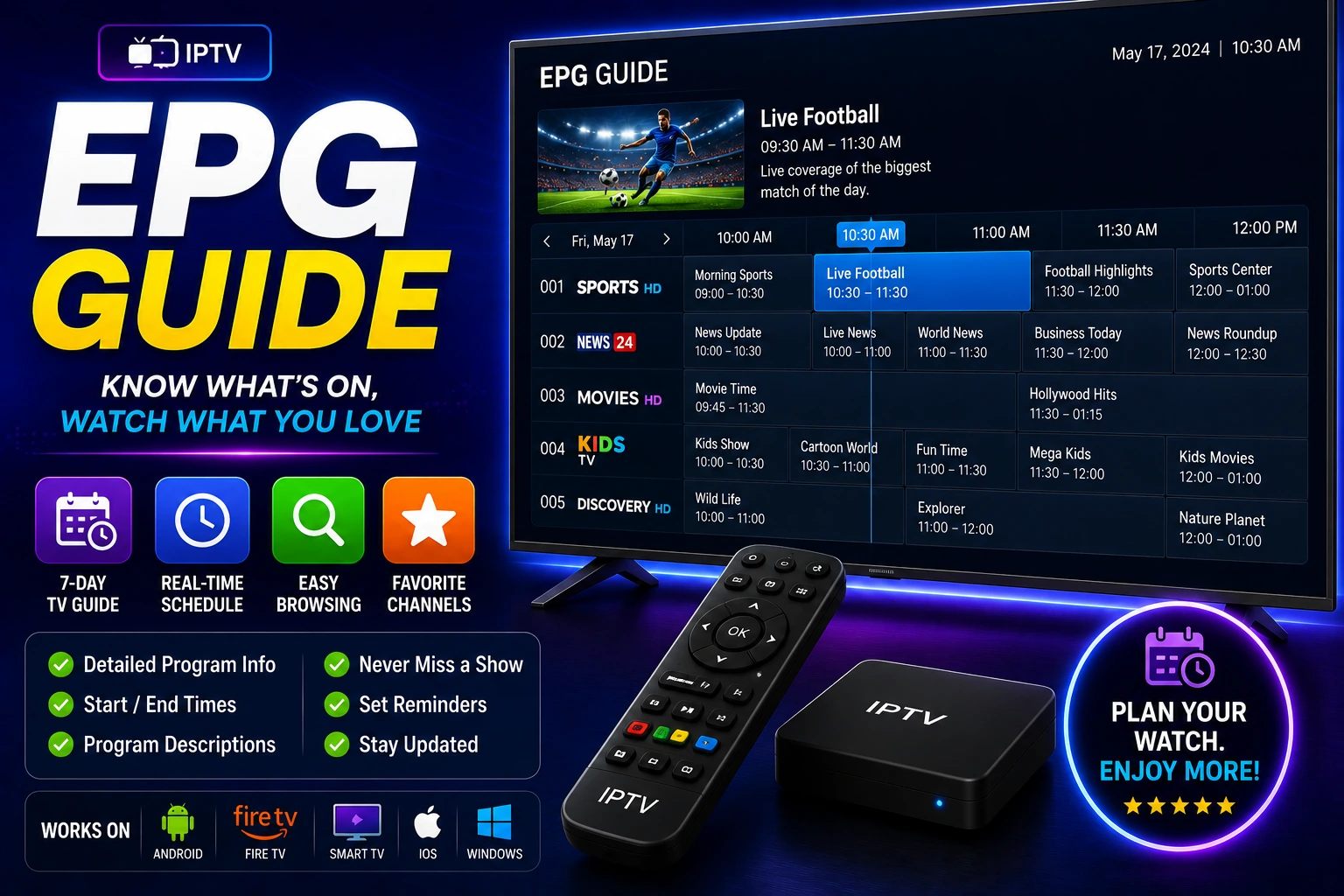
EPG (Electronic Program Guide) is a digital TV guide that displays program information for IPTV channels. It shows what's currently playing, upcoming shows, program descriptions, and schedules.
EPG Features
- • Current program information
- • Upcoming show schedules
- • Program descriptions & ratings
- • Start and end times
- • Genre and category info
- • Recording scheduling
- • Catch-up TV integration
EPG Benefits
- • Know what's playing without tuning in
- • Plan viewing schedule
- • Set reminders for shows
- • Schedule recordings
- • Browse by genre or time
- • Professional TV experience
How EPG Works
- EPG data is stored in XML format on a server
- Your IPTV player downloads the EPG file
- Player matches channel IDs (tvg-id) with EPG data
- Program information displays in the TV guide
- EPG updates automatically (daily or weekly)
Setting Up EPG
Step 1: Get EPG URL
Obtain EPG XML URL from one of these sources:
From IPTV Provider
Most providers include EPG URL with subscription. Check welcome email or provider dashboard.
Free EPG Services
- • iptv-org/epg (GitHub) - Free, community-maintained
- • WebGrab+Plus - Generate your own EPG
- • EPG.best - Free EPG for many channels
Paid EPG Services
Premium EPG services offer more channels, better accuracy, and faster updates ($5-15/month).
Step 2: Configure M3U Playlist
Add tvg-id values to your M3U playlist to link channels with EPG data:
#EXTM3U url-tvg="http://example.com/epg.xml"

#EXTINF:-1 tvg-id="BBCOne.uk" tvg-logo="logo.png",BBC One
http://example.com/bbc1.m3u8

#EXTINF:-1 tvg-id="CNN.us" tvg-logo="logo.png",CNN
http://example.com/cnn.m3u8
Important: tvg-id must exactly match the channel ID in the EPG XML file. Case-sensitive!
Step 3: Add EPG to Player
Configure EPG in your IPTV player:
TiviMate
- Settings ? Playlists ? Select your playlist
- EPG source ? Enter EPG URL
- Save and wait for EPG to download
IPTV Smarters Pro
- Settings ? EPG Settings
- Add EPG URL
- Enable "Auto Update EPG"
- Click "Update EPG"
Perfect Player
- Settings ? General ? EPG
- Add EPG source URL
- Set update interval
- Save settings
Step 4: Wait for EPG Download
EPG files can be large (10-100+ MB). Initial download takes time:
- • Small EPG (few channels): 1-5 minutes
- • Medium EPG (100-500 channels): 5-10 minutes
- • Large EPG (1000+ channels): 10-20 minutes
- • Be patient - don't restart during download
Finding Correct Channel IDs
Why Channel IDs Matter
EPG only works when tvg-id in your M3U matches the channel ID in the EPG XML. Mismatched IDs result in missing program information.
Method 1: Check EPG XML File
Download the EPG XML file and search for your channel:
<channel id="BBCOne.uk">
<display-name>BBC One</display-name>
</channel>
Use the ID value (BBCOne.uk) as your tvg-id in the M3U file.
Method 2: Use EPG Mapping Tools
Some IPTV players offer automatic EPG mapping:
- • TiviMate: Auto-match by channel name
- • IPTV Smarters: EPG mapping feature
- • Manual mapping in player settings
Method 3: Provider Documentation
Check your IPTV provider's documentation or support for a list of channel IDs. Many providers publish channel ID lists.
EPG Optimization
Set Update Schedule
Configure automatic EPG updates to keep program information current:
- • Daily updates: Best for accuracy
- • Update during off-peak hours (3-5 AM)
- • Enable "Auto Update EPG" in player settings
- • Manual update option for immediate refresh
Optimize EPG Display
Customize EPG appearance for better usability:
- • Adjust time format (12h/24h)
- • Set EPG days to display (3-7 days typical)
- • Enable/disable program descriptions
- • Customize grid layout and colors
Reduce EPG File Size
For faster loading, use filtered EPG with only your channels:
- • Use EPG filtering tools
- • Remove unused channel data
- • Limit EPG to 3-5 days instead of 7+
- • Host filtered EPG on fast server
EPG Troubleshooting
EPG Not Showing
- • Verify EPG URL is correct and accessible
- • Check tvg-id values match EPG channel IDs
- • Wait 15-20 minutes for initial download
- • Clear player cache and reload EPG
- • Test EPG URL in browser (should download XML)
EPG Shows Wrong Programs
- • Verify tvg-id matches correct channel
- • Check timezone settings in player
- • Ensure EPG source is for your region
- • Update EPG to latest version
EPG Outdated
- • Enable automatic EPG updates
- • Manually trigger EPG update
- • Check if EPG source is still active
- • Switch to more reliable EPG provider
EPG Loading Slow
- • Use filtered EPG with fewer channels
- • Reduce EPG days from 7 to 3-5
- • Check internet connection speed
- • Try different EPG source/server
Some Channels Missing EPG
- • EPG source may not cover all channels
- • Verify channel has tvg-id in M3U
- • Check if channel ID exists in EPG XML
- • Use multiple EPG sources for better coverage
Frequently Asked Questions
What is EPG in IPTV?
EPG (Electronic Program Guide) is a digital TV guide showing current and upcoming programs for IPTV channels. It displays program names, descriptions, start/end times, and allows scheduling recordings. EPG data is typically provided as XML files.
How do I add EPG to my IPTV?
Add EPG by entering the EPG XML URL in your IPTV player settings. Ensure channel tvg-id values in your M3U playlist match the channel IDs in the EPG XML file. The player will download and update EPG data automatically.
Where can I get EPG data for IPTV?
Get EPG data from your IPTV provider, free EPG services like iptv-org/epg on GitHub, or paid EPG services. Many providers include EPG URLs with subscriptions. Ensure the EPG source covers your channels and region.
link Related Guides
M3U Playlist Guide
Create M3U playlists with EPG support
Fix EPG Issues
Troubleshoot EPG problems
TiviMate Review
Best player for EPG management
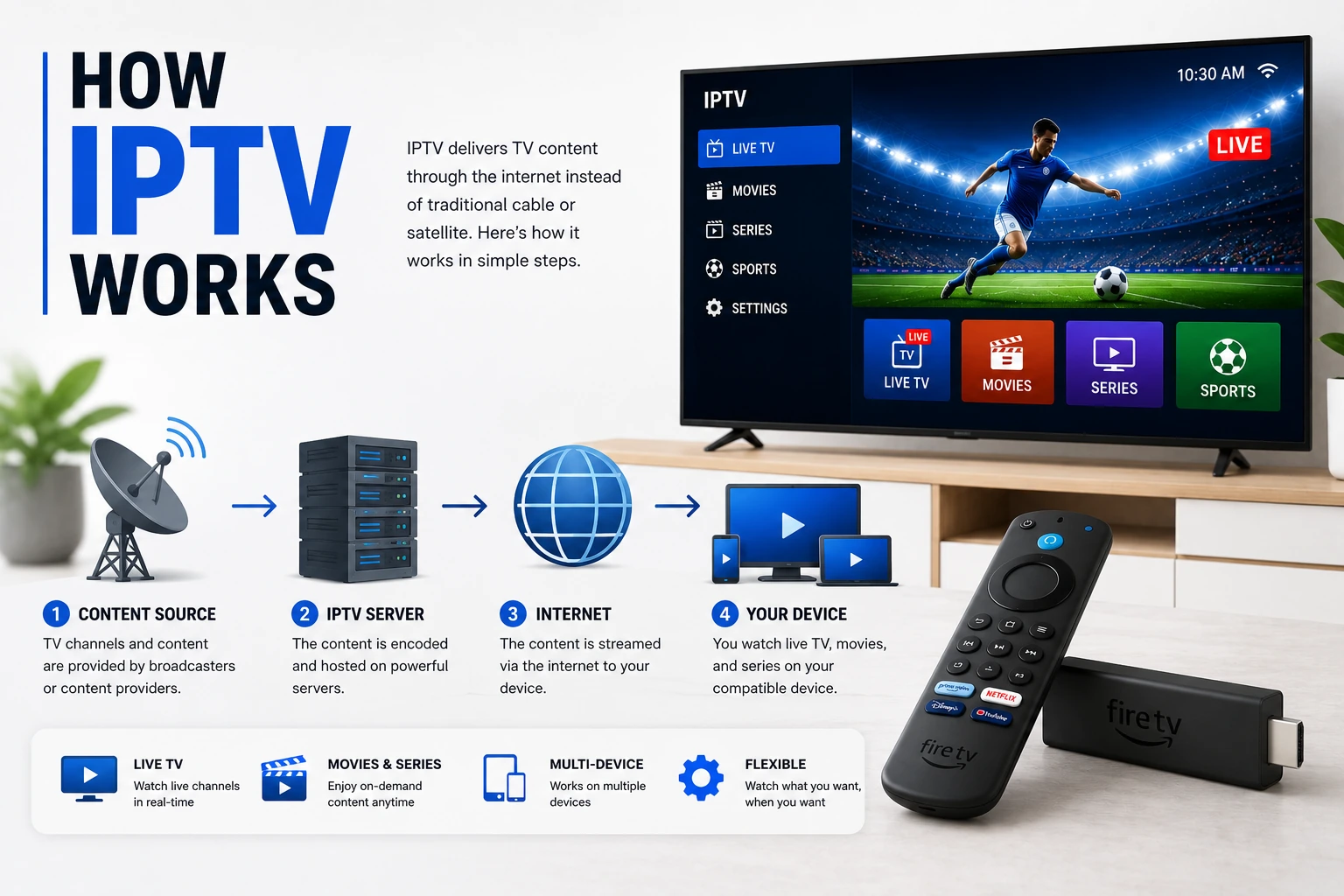
How IPTV Works
Technical overview including EPG