
EPG Not Working on IPTV? Fix TV Guide Issues (2026)
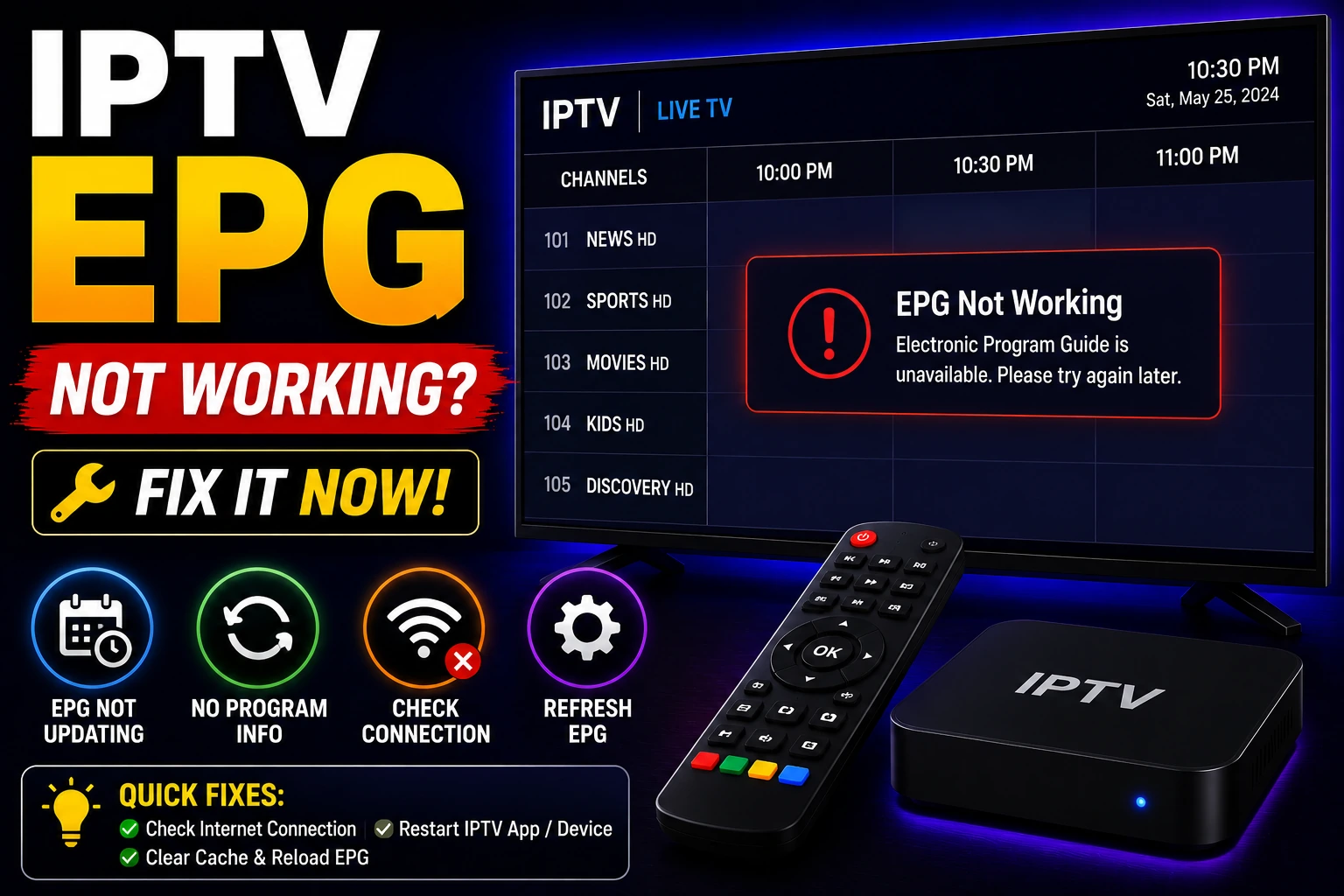
EPG (Electronic Program Guide) not showing on your IPTV player? Missing TV guide information makes it hard to know what's playing and plan your viewing. This comprehensive guide shows you how to fix EPG issues, update guide data, and configure EPG settings correctly on all IPTV players.
bolt Quick Fix (Works 80% of the Time)
- 1. Open your IPTV player settings and find EPG settings
- 2. Tap "Update EPG" or "Refresh Guide" to download latest data
- 3. Wait 5-10 minutes for large guides to download completely
- 4. Restart the app and check if EPG appears
If this doesn't work, follow the detailed fixes below.
What is EPG?
EPG (Electronic Program Guide) is the TV guide that shows what's currently playing and upcoming programs on each channel. It's like the channel guide you had on cable TV, displaying program names, descriptions, start times, and durations.
EPG data comes from a separate source (usually an XML file) that your IPTV player downloads and matches with your channels. When EPG isn't working, you'll only see channel names without program information.
Why EPG Isn't Working
Incorrect EPG URL
Wrong or outdated EPG source URL in your player settings
Outdated EPG Data
EPG hasn't been updated recently and shows old programs
Channel ID Mismatch
EPG channel IDs don't match your playlist channel IDs
Cache Issues
Corrupted EPG cache preventing new data from loading
EPG Source Down
EPG server is offline or not responding
Wrong Settings
EPG update interval set incorrectly or disabled
Fix 1: Update EPG Manually
The most common fix is simply updating your EPG data. Here's how on popular IPTV players:
TiviMate
- Open TiviMate and go to Settings
- Select EPG
- Tap Update EPG
- Wait for download to complete (progress shown at top)
- Restart TiviMate
IPTV Smarters Pro
- Open IPTV Smarters and tap Settings (gear icon)
- Select EPG Settings
- Tap Update EPG
- Wait for "EPG Updated Successfully" message
- Go back and check channels
GSE Smart IPTV
- Open GSE Smart IPTV
- Tap Settings ? EPG
- Tap Update Now
- Wait for download (can take several minutes)
- Restart the app
Perfect Player
- Open Perfect Player
- Tap menu ? Settings ? EPG
- Tap Update EPG
- Wait for completion message
- Restart Perfect Player
Fix 2: Verify EPG URL
Make sure you have the correct EPG URL from your IPTV provider.
Get EPG URL from Provider
Contact your IPTV provider and ask for the EPG URL. It usually looks like:
http://example.com/epg.xml.gz Note: If using Xtream Codes, EPG is usually automatic
Add EPG URL to Player
Go to your player's EPG settings and paste the URL in the EPG source field. Save and update EPG.
Test EPG URL
Open the EPG URL in a web browser. If it downloads an XML file, the URL is working. If you get an error, the URL is incorrect.
Fix 3: Clear EPG Cache
Corrupted cache can prevent new EPG data from loading properly.
Method 1: Clear in App Settings
- Open your IPTV player settings
- Find Clear Cache or Clear EPG Data
- Confirm the action
- Update EPG again
- Restart the app
Method 2: Clear App Data (Android)
- Go to device Settings ? Apps
- Find your IPTV player app
- Tap Storage
- Tap Clear Cache (not Clear Data - that removes everything)
- Open app and update EPG
Fix 4: Configure Auto-Update Settings
Set your EPG to update automatically so it stays current.
Recommended Settings:
- check_circle Update Interval: Set to 12 or 24 hours
This keeps EPG data fresh without excessive downloads
- check_circle Auto-Update: Enable automatic updates
App will download new EPG data in the background
- check_circle Update on WiFi Only: Enable if on mobile data
Prevents large EPG downloads over cellular
Fix 5: Fix Channel ID Mismatch
EPG data matches channels using channel IDs. If IDs don't match, EPG won't display.
Understanding the Problem
Your M3U playlist has channel IDs (tvg-id), and your EPG source also has channel IDs. These must match exactly for EPG to work.
Example: If your playlist says tvg-id="CNN" but EPG says "cnn.us", they won't match.
Solutions
- arrow_right Use Xtream Codes: Automatically matches channels and EPG
- arrow_right Contact Provider: Ask for EPG source that matches your playlist
- arrow_right Manual Mapping: Some players let you manually map channels to EPG IDs
Fix 6: Use Alternative EPG Source
If your provider's EPG isn't working, try these free EPG sources:
IPTV-Org EPG
Free EPG for many international channels
https://iptv-org.github.io/epg/guides/ Browse available guides by country/region
WebGrab+Plus
Create your own EPG from TV guide websites
Advanced option for tech-savvy users
Provider's Backup EPG
Ask your IPTV provider if they have alternative EPG URLs
Note: Free EPG sources may not have all channels or may have different channel IDs. Your provider's EPG is usually the best match for your playlist.
Fix 7: Allow Sufficient Download Time
Large EPG files take time to download. Don't interrupt the process.
Small EPG
100-500 channels
30-60 sec
Medium EPG
500-2000 channels
2-5 min
Large EPG
2000+ channels
5-15 min
Tips for Faster Downloads:
- check Use WiFi instead of mobile data
- check Keep app in foreground during download
- check Don't close or minimize the app
- check Update during off-peak hours for faster speeds
Frequently Asked Questions
Why is my IPTV EPG not working? expand_more
How do I update EPG on IPTV? expand_more
Where do I get EPG URL for IPTV? expand_more
How long does EPG take to load? expand_more
Why does EPG show wrong programs? expand_more
Can I use IPTV without EPG? expand_more
Prevent EPG Issues
Enable Auto-Update
Set EPG to update automatically every 12-24 hours to keep data fresh
Use Xtream Codes
Xtream Codes API automatically handles EPG matching and updates
Keep App Updated
Update your IPTV player regularly for bug fixes and improvements
Stable Internet
Ensure stable WiFi connection during EPG updates
Still Not Working?
If you've tried all these fixes and EPG still isn't working, the issue might be with your IPTV provider:
- arrow_right Contact your IPTV provider for correct EPG URL
- arrow_right Ask if their EPG server is experiencing issues
- arrow_right Request Xtream Codes credentials if available
- arrow_right Consider switching to a more reliable IPTV provider
Remember: EPG is a convenience feature. Your channels will still work without it - you just won't see program information.