
IPTV Black Screen Fix - Solve Video Display Issues
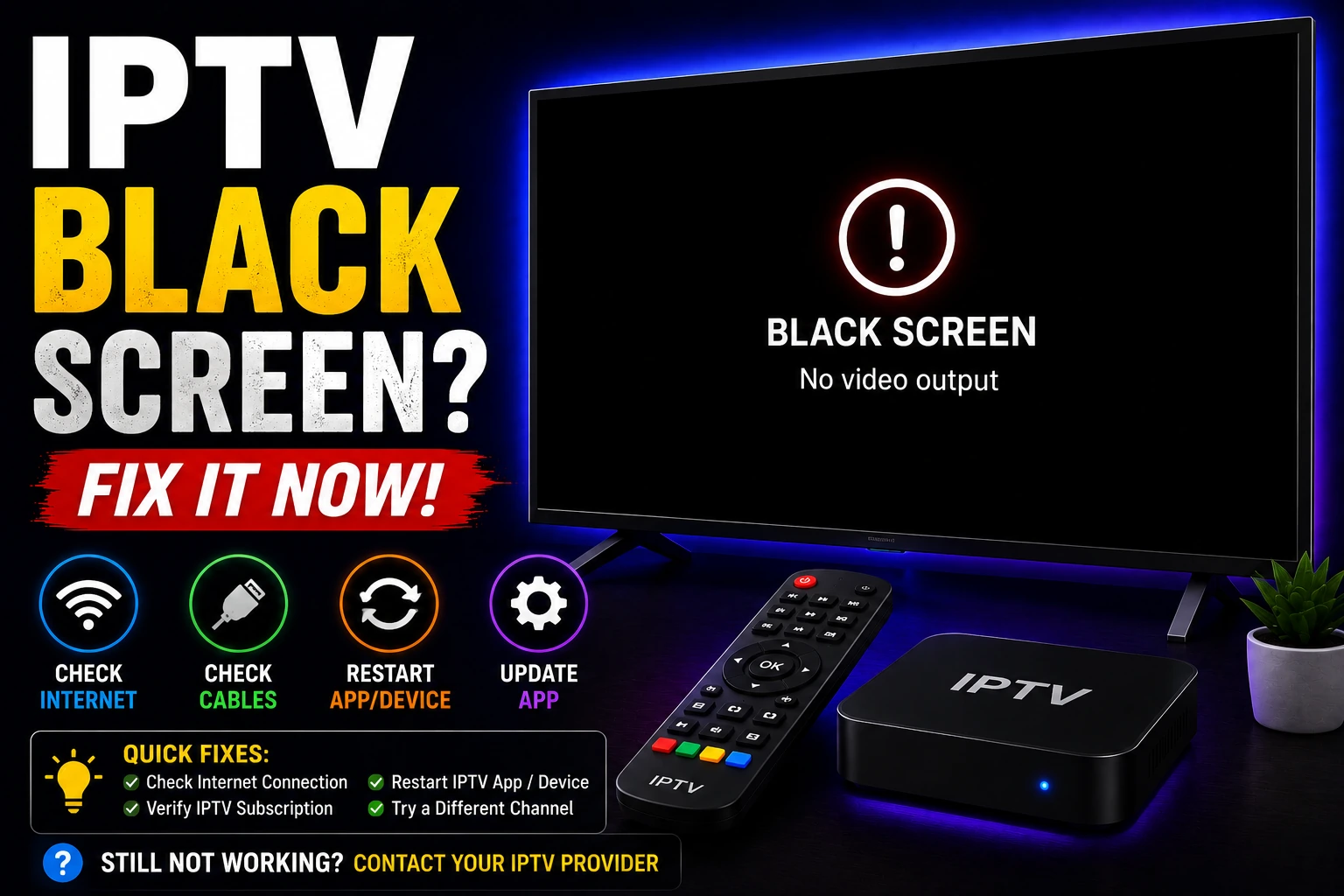
IPTV black screen errors are frustrating, especially when you can hear audio but see no video. This comprehensive guide provides proven solutions for fixing black screen issues caused by codec problems, hardware acceleration, HDMI connections, and display settings on all devices.
bolt Quick Fix (Try This First)
- 1. Disable hardware acceleration in IPTV player settings
- 2. Check HDMI cable connection and try different HDMI port
- 3. Update your IPTV app to latest version
- 4. Restart both your streaming device and TV
If black screen persists, follow the detailed fixes below.
Why IPTV Shows Black Screen
Video Codec Issues
Device doesn't support the video codec used by the stream
Hardware Acceleration
GPU can't decode video format, causing black screen
HDMI Connection
Faulty cable, loose connection, or HDCP handshake failure
Resolution Mismatch
Output resolution doesn't match TV capabilities
HDR/Color Space
HDR or color space settings incompatible with TV
Outdated Software
Old app version or firmware with codec bugs
How to Fix IPTV Black Screen (Step-by-Step)
1 Disable Hardware Acceleration
Hardware acceleration can cause black screens if your device's GPU doesn't support the video codec.
In IPTV Player Settings:
- Open your IPTV app settings
- Find Video or Playback settings
- Disable "Hardware Acceleration" or "Hardware Decoder"
- Enable "Software Video Decoding"
- Restart app and test playback
Note: Software decoding uses more CPU but has better compatibility.
2 Check and Replace HDMI Cable
Faulty or incompatible HDMI cables are a common cause of black screens.
- check_circle Unplug and firmly reconnect HDMI cable at both ends
- check_circle Try a different high-speed HDMI 2.0+ cable
- check_circle Test different HDMI port on your TV
- check_circle Avoid HDMI switches or adapters if possible
3 Adjust Display Resolution
Resolution mismatch between device and TV can cause black screens.
On Firestick/Fire TV:
- Go to Settings ? Display & Sounds ? Display
- Change Video Resolution to 1080p (not Auto)
- Disable "Match Original Frame Rate"
- Set to 60Hz refresh rate
On Android TV:
- Settings ? Display & Sound ? Resolution
- Select 1080p instead of 4K if having issues
- Disable HDR if enabled
4 Update IPTV App and Device Firmware
Outdated software often has codec compatibility issues causing black screens.
- check_circle Check app store for IPTV player updates
- check_circle Update device firmware (Firestick, Android TV, etc.)
- check_circle Clear app cache after updating
- check_circle Restart device after all updates
5 Disable HDR and Color Space Settings
HDR or incorrect color space can cause black screens on incompatible TVs.
- check_circle In device settings, disable HDR/HDR10+
- check_circle Set color space to RGB or YCbCr 4:2:2
- check_circle Disable "Match Content" features
- check_circle Use standard dynamic range (SDR) instead
6 Try Different IPTV Player
Some players have better codec support and can handle problematic streams.
- play_circle VLC Media Player - Supports all codecs
- play_circle TiviMate - Excellent codec compatibility
- play_circle IPTV Smarters Pro - Good fallback option
- play_circle See our best IPTV players comparison
7 Clear App Cache and Data
Corrupted cache can cause video playback issues including black screens.
On Android/Firestick:
- Settings ? Applications ? Manage Installed Apps
- Select your IPTV app
- Click "Clear Cache" then "Clear Data"
- Restart app and re-enter credentials
8 Check TV Input and Settings
Sometimes the issue is with TV settings, not the IPTV service.
- check_circle Verify TV is on correct HDMI input
- check_circle Check TV brightness and contrast settings
- check_circle Disable any picture enhancement features
- check_circle Reset TV picture settings to default
9 Disable HDCP if Possible
HDCP (copy protection) can cause black screens with some devices.
- check_circle Check if your device has HDCP disable option
- check_circle Try HDMI splitter that strips HDCP (if legal in your region)
- check_circle Use different HDMI port (some support different HDCP versions)
10 Factory Reset Device (Last Resort)
If nothing else works, a factory reset can resolve deep software issues.
- check_circle Backup important data and settings first
- check_circle Go to device Settings ? System ? Reset
- check_circle Reinstall IPTV app after reset
- check_circle Configure settings from scratch
Device-Specific Black Screen Fixes
tv Firestick / Fire TV
- • Settings ? Display & Sounds ? Display ? Change to 1080p
- • Disable "Match Original Frame Rate"
- • Try different HDMI port on TV
- • Hold Select + Play buttons for 5 seconds to restart
- • Disable Dolby Vision if enabled
android Android TV / Android Box
- • Settings ? Display ? Resolution ? Select 1080p
- • Disable HDR in display settings
- • Clear system cache (Recovery mode)
- • Update Android system to latest version
- • Disable hardware overlays in Developer Options
phone_iphone iOS / Apple TV
- • Settings ? Video and Audio ? Match Content ? Disable all
- • Change Format to 1080p SDR
- • Restart Apple TV (Settings ? System ? Restart)
- • Check for tvOS updates
- • Try different HDMI cable (Apple TV is picky)
tv Smart TV (Samsung, LG, Sony)
- • Update Smart TV firmware to latest version
- • Disable HDMI-CEC (Anynet+, Simplink, Bravia Sync)
- • Change HDMI input mode to "PC" or "Game"
- • Disable picture enhancement features
- • Factory reset TV if all else fails
Understanding Video Codecs
Black screens often occur when your device doesn't support the video codec used by the stream. Here's what you need to know:
| Codec | Compatibility | Quality | Notes |
|---|---|---|---|
| H.264 (AVC) | Excellent | Good | Most compatible, works on all devices |
| H.265 (HEVC) | Good | Excellent | Better compression, needs newer devices |
| VP9 | Moderate | Excellent | Used by YouTube, limited IPTV support |
| MPEG-2 | Excellent | Moderate | Older format, universal compatibility |
| AV1 | Limited | Excellent | Newest codec, few devices support it |
If your device doesn't support a codec, use software decoding (disable hardware acceleration) or try a player with better codec support like VLC.
How to Prevent Black Screen Issues
cable Use Quality Cables
Invest in certified high-speed HDMI 2.0+ cables. Cheap cables cause intermittent black screens and signal loss.
update Keep Software Updated
Regularly update IPTV apps and device firmware. Updates include codec improvements and bug fixes.
settings Use Compatible Settings
Stick with 1080p resolution and disable HDR unless you're certain your setup supports it properly.
help Still Getting Black Screen?
If you've tried all fixes and still have black screens, the issue may be with your IPTV provider's stream encoding.
- arrow_right Contact your IPTV provider about codec compatibility
- arrow_right Ask if they have alternative streams with different codecs
- arrow_right Test with a different IPTV service to rule out device issues
- arrow_right Consider upgrading to a newer device with better codec support
- arrow_right Switch to a provider from our best IPTV services list
Frequently Asked Questions
Why is my IPTV showing a black screen?
IPTV black screen is usually caused by video codec incompatibility, hardware acceleration issues, HDMI connection problems, or outdated app/firmware. Try disabling hardware acceleration, checking HDMI cable, and updating your IPTV app.
How do I fix IPTV black screen with sound?
Black screen with audio indicates video codec issues. Disable hardware acceleration in player settings, enable software video decoding, or try a different IPTV player that supports more codecs like VLC or TiviMate.
Why does IPTV show black screen on Firestick?
Firestick black screen is often caused by HDMI handshake issues, resolution mismatch, or hardware acceleration problems. Try different HDMI port, change display resolution to 1080p, and disable hardware acceleration in app settings.
Does HDMI cable cause IPTV black screen?
Yes, faulty or incompatible HDMI cables can cause black screen. Use high-speed HDMI 2.0+ cable, ensure secure connection, try different HDMI port on TV, and check if HDCP is causing issues.
How do I fix IPTV black screen on Smart TV?
Fix Smart TV black screen by updating TV firmware, clearing app cache, checking display settings, disabling HDR if enabled, and ensuring TV supports the video codec. Try reinstalling the IPTV app.
Why is IPTV black screen only on some channels?
Black screen on specific channels indicates those channels use unsupported video codecs. Try different player with better codec support, enable software decoding, or contact provider for alternative stream formats.
IPTV provider we recommend
Free public playlists fail far more often than paid ones, because channels go dark and nobody maintains the list. If you have worked through the fixes above and the problem keeps coming back, that is usually why.
starStrongIPTV — best for channel breadth, US local networks and PPV
- check50,000+ live channels, including US local networks (ABC, CBS, NBC, FOX)
- check190,000+ VOD titles and a large PPV library
- check4K streams with multi-device support
- checkM3U URL and Xtream Codes login — works with TiviMate, IPTV Smarters, VLC, Kodi and GSE
Also worth testing: FavIPTV — the alternative if server stability during live sport matters more to you than channel count. Both offer a 24-hour free trial, so the two can be tested side by side before you commit.
Affiliate disclosure: both providers above are affiliate partners — we may earn a commission if you subscribe through these links, at no extra cost to you. We do not sell IPTV subscriptions ourselves, and the trial terms are the providers’ own.