
How to Watch IPTV on VLC Complete Setup Guide (2026)
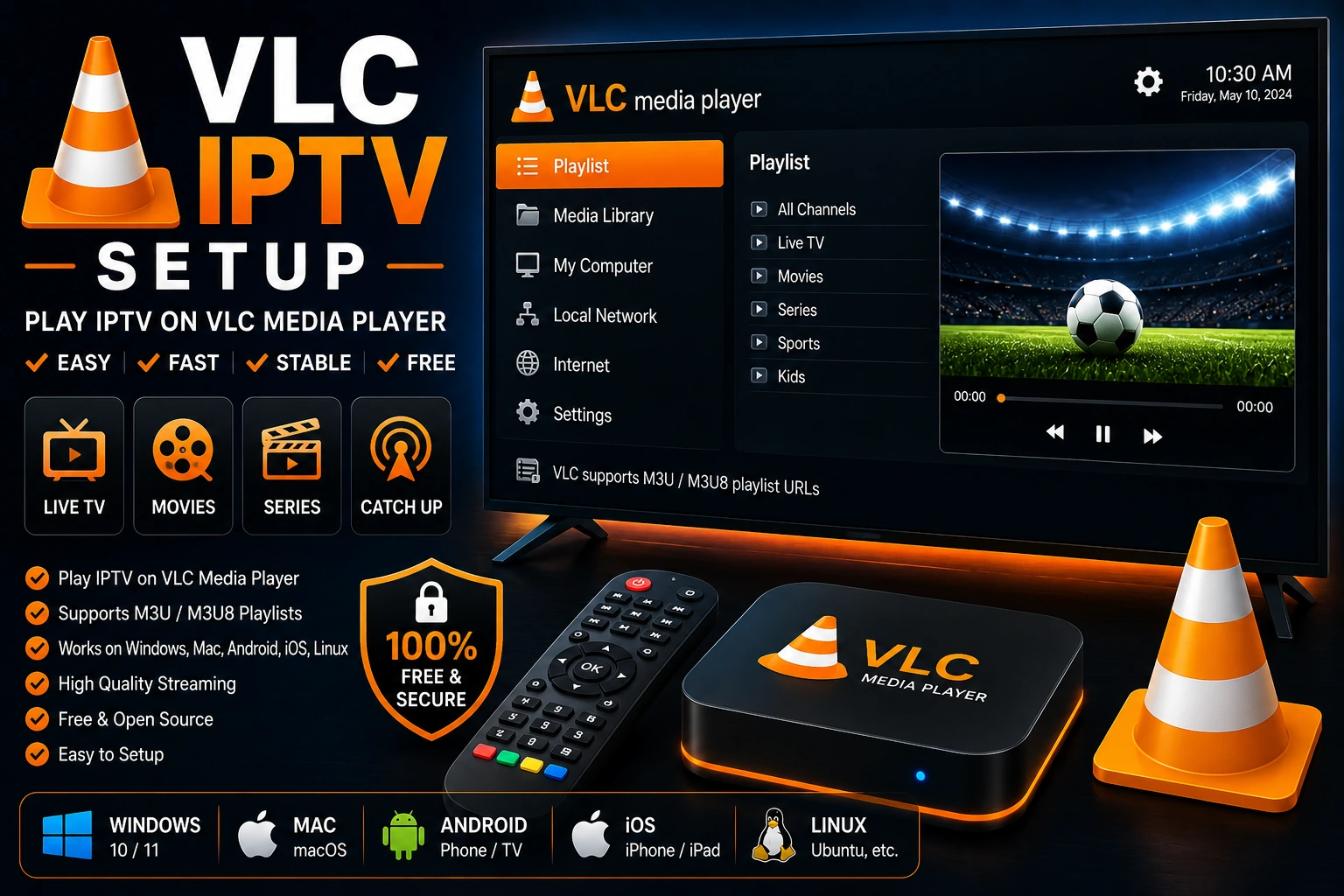
VLC Media Player is a free, open-source media player that can play IPTV streams. While it's not a dedicated IPTV player, VLC is perfect for testing streams, occasional viewing, or when you need a simple solution without installing specialized apps. This guide shows you exactly how to set up and optimize VLC for IPTV.
info Quick Summary
VLC can play IPTV streams using M3U playlists or direct stream URLs. It's free, works on all platforms, and requires no registration. However, VLC lacks features like EPG, catch-up TV, and user-friendly channel management that dedicated IPTV players offer.
Best for: Testing IPTV streams, occasional viewing, or users who already have VLC installed. Not recommended as your primary IPTV player if you watch regularly.
What You Need
M3U Playlist
URL or file from your IPTV provider
Internet Connection
Minimum 10 Mbps for HD streaming
Method 1: Play M3U URL (Recommended)
This is the easiest method to watch IPTV on VLC. You'll load your M3U playlist URL directly into VLC.
Open VLC Media Player
Launch VLC on your computer. If you don't have it installed, download it from videolan.org (it's free).
Open Network Stream
Go to Media menu ? Click Open Network Stream (or press Ctrl+N on Windows, Cmd+N on Mac).
Tip: This opens a dialog where you can paste streaming URLs.
Paste Your M3U URL
In the "Network" tab, paste your M3U playlist URL in the text field. The URL should look like:
http://example.com/playlist.m3u Click Play
Click the Play button. VLC will load the playlist and start playing the first channel.
Access Playlist
Go to View ? Playlist (or press Ctrl+L) to see all channels. Double-click any channel to switch to it.
Method 2: Load M3U File from Computer
If you have an M3U file saved on your computer, you can load it directly into VLC.
Download M3U File
Download your M3U playlist file from your IPTV provider and save it to your computer.
Open File in VLC
Right-click the M3U file ? Open with ? VLC Media Player. Or drag and drop the file into VLC.
Browse Channels
VLC will load all channels. Open the playlist (View ? Playlist) to see and select channels.
Method 3: Play Individual Stream URL
If you have a direct stream URL for a specific channel, you can play it without a playlist.
Copy Stream URL
Get the direct stream URL from your IPTV provider. It might look like:
http://example.com:8080/live/username/password/12345.ts Open Network Stream
In VLC, go to Media ? Open Network Stream (Ctrl+N).
Paste and Play
Paste the stream URL and click Play. The channel will start streaming immediately.
Optimize VLC Settings for IPTV
These settings will improve streaming performance and reduce buffering.
1. Increase Network Cache
This is the most important setting for smooth IPTV playback:
- Go to Tools ? Preferences (or press Ctrl+P)
- At the bottom left, select Show settings: All
- Navigate to Input / Codecs
- Find Network Caching (ms)
- Change the value from 1000 to 3000-5000 milliseconds
- Click Save and restart VLC
2. Enable Hardware Acceleration
Reduces CPU usage and improves performance:
- Go to Tools ? Preferences
- Click Input / Codecs tab
- Under Hardware-accelerated decoding, select Automatic
- Click Save
3. Adjust Video Output
For better video quality:
- Go to Tools ? Preferences
- Select Show settings: All
- Navigate to Video ? Output
- Try different output modules if you experience issues (DirectX, OpenGL, etc.)
- Click Save
4. Disable Automatic Updates Check
Prevents interruptions during playback:
- Go to Tools ? Preferences
- Uncheck Check for updates
- Click Save
VLC for IPTV: Pros and Cons
thumb_up Pros
- check Completely free and open-source
- check Works on all platforms (Windows, Mac, Linux, Android, iOS)
- check No registration or account required
- check Supports many streaming protocols
- check Great for testing streams
- check Lightweight and fast
thumb_down Cons
- close No EPG (TV guide) support
- close No catch-up TV or recording
- close Basic playlist management
- close Not optimized for TV remotes
- close No parental controls
- close Interface not designed for IPTV
Common Issues & Solutions
Stream keeps buffering expand_more
Solution: Increase network cache to 5000ms (Tools ? Preferences ? Input/Codecs ? Network Caching).
Also check your internet speed and consider using a VPN to avoid ISP throttling.
Playlist won't load expand_more
Solution: Verify your M3U URL is correct. Try opening it in a web browser first to check if it's accessible.
Make sure your IPTV subscription is active. See our M3U troubleshooting guide.
Video stuttering or freezing expand_more
Solution: Enable hardware acceleration (Tools ? Preferences ? Input/Codecs ? Hardware-accelerated decoding ? Automatic).
Close other programs using bandwidth and ensure your device meets minimum requirements.
No sound on some channels expand_more
Solution: Go to Audio ? Audio Track and select a different audio track. Some channels have multiple audio streams.
Check if the issue is with specific channels or all channels to isolate the problem.
Channels not showing in playlist expand_more
Solution: Open the playlist view (View ? Playlist or Ctrl+L). If it's empty, reload the M3U file or URL.
Some M3U files may have formatting issues. Try downloading a fresh copy from your provider.
VLC vs Dedicated IPTV Players
| Feature | VLC | TiviMate | IPTV Smarters |
|---|---|---|---|
| Price | Free | $5.49/year | Free |
| EPG Support | ? | ? | ? |
| Catch-Up TV | ? | ? | ? |
| User Interface | Basic | Excellent | Good |
| Channel Management | Basic | Advanced | Good |
| Recording | ? | ? (Premium) | ? |
| Best For | Testing | Android TV | All Platforms |
VLC is great for testing, but dedicated IPTV players offer much better features for regular viewing.
Frequently Asked Questions
Can VLC play IPTV streams? expand_more
How do I add an M3U playlist to VLC? expand_more
Is VLC good for IPTV? expand_more
Does VLC support EPG for IPTV? expand_more
Can I use VLC for IPTV on all devices? expand_more
Why does my IPTV buffer in VLC? expand_more
When Should You Use VLC for IPTV?
check_circle Good Use Cases
- arrow_right Testing IPTV streams before subscribing
- arrow_right Occasional IPTV viewing on desktop
- arrow_right Quick access without installing dedicated apps
- arrow_right Troubleshooting stream URLs
- arrow_right Playing individual channel streams
cancel Not Recommended For
- arrow_right Daily IPTV viewing (use dedicated players)
- arrow_right TV viewing with remote control
- arrow_right When you need EPG/TV guide
- arrow_right Recording or catch-up TV features
- arrow_right Managing large channel lists
Final Recommendation
VLC Media Player is a solid option for testing IPTV streams or occasional viewing on your computer. It's free, reliable, and works on all platforms. However, if you plan to watch IPTV regularly, you'll have a much better experience with dedicated IPTV players.
For the best IPTV experience, consider these alternatives:
- star TiviMate - Best for Android TV with premium features
- star IPTV Smarters Pro - Best free cross-platform player
- star GSE Smart IPTV - Best for iOS devices
Check our complete IPTV player comparison to find the perfect app for your needs.