
IPTV Smarters "Failed to Authorize" - 8 Quick Fixes
Getting the dreaded "Failed to Authorize" error on IPTV Smarters? You're not alone - this is one of the most common issues users face. The good news? It's usually a simple fix that takes just a few minutes. This guide walks you through every solution to get you streaming again fast.
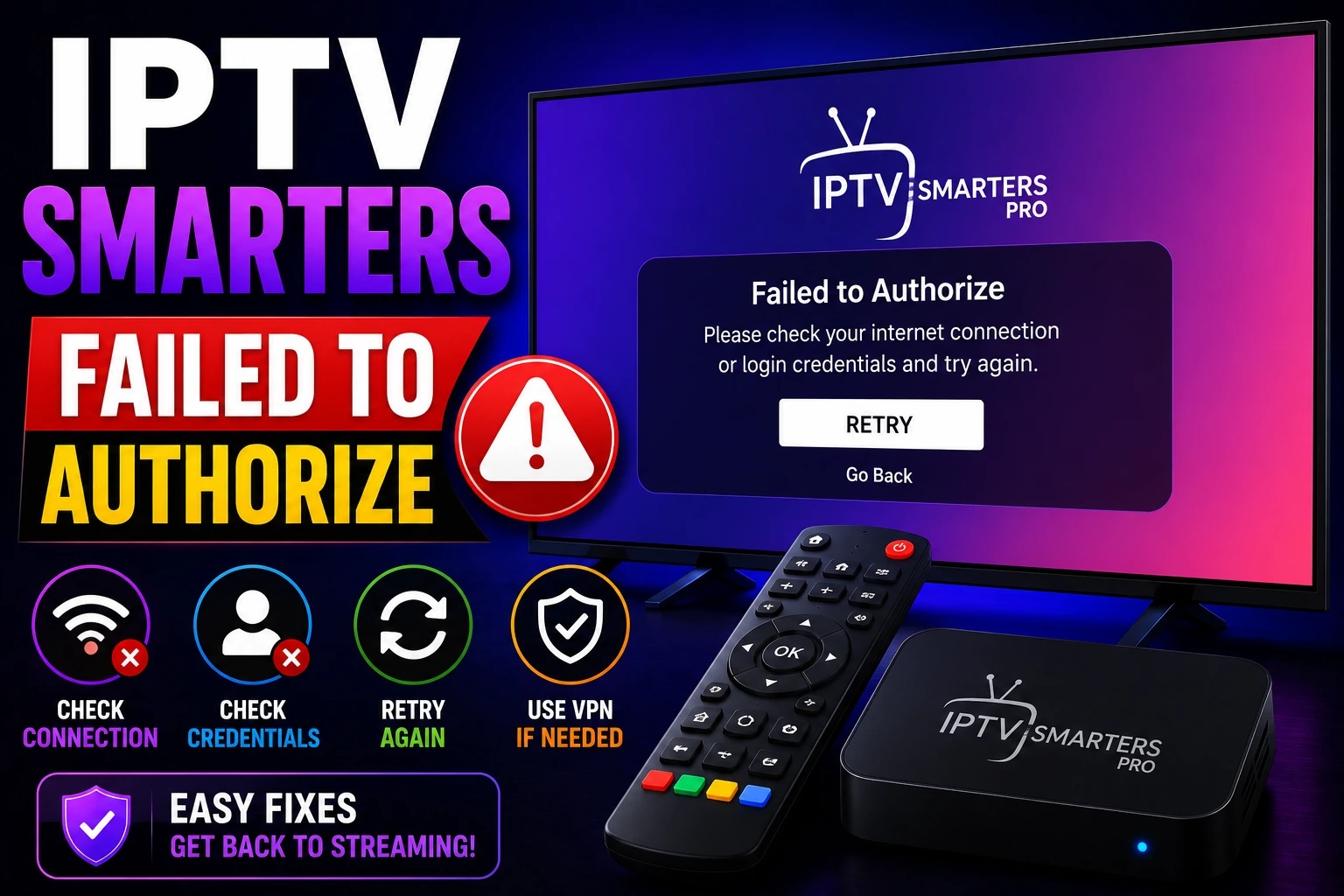
What Does "Failed to Authorize" Mean?
When IPTV Smarters displays "Failed to Authorize," it means the app couldn't verify your login credentials with your IPTV provider's server. Think of it like trying to log into your email with the wrong password - the server rejects your access.
This error appears during the login process when you enter your Xtream Codes credentials (username, password, and server URL). The app sends your information to the server, and if something's wrong, you get blocked from accessing your channels.
Why IPTV Smarters Authorization Fails
Wrong Credentials
Typos in username, password, or server URL are the #1 cause. Even one wrong character breaks authentication.
Expired Subscription
Your IPTV subscription may have expired, or payment didn't go through. Inactive accounts can't authorize.
Device Limit Reached
Most IPTV services limit simultaneous connections. If you're logged in elsewhere, new logins fail.
Server Issues
Your provider's server might be down for maintenance or experiencing technical problems.
Incorrect URL Format
Server URLs must be in the exact format. Missing http://, wrong port, or extra characters cause failures.
App Cache Problems
Corrupted cache or old login data can interfere with new authorization attempts.
How to Fix IPTV Smarters Authorization Error
1 Double-Check Your Login Credentials
This sounds obvious, but it's the most common fix. Carefully verify every character.
- check_circle Check for typos in username and password
- check_circle Verify capitalization (passwords are case-sensitive)
- check_circle Remove any spaces before or after credentials
- check_circle Copy-paste credentials directly from your provider's email
Pro Tip: Type credentials in a notes app first to see them clearly, then copy-paste into IPTV Smarters to avoid typos.
2 Verify Server URL Format
The server URL must be in the exact correct format. Here's what to check:
? Correct Format:
http://server.com:8080 or
http://123.456.789.012:8080 ? Wrong Formats:
server.com:8080 (missing http://)http://server.com (missing port)http://server.com:8080/ (extra slash) - check_circle Must start with
http://orhttps:// - check_circle Include the port number (usually 8080 or 25461)
- check_circle No trailing slash at the end
- check_circle No spaces anywhere in the URL
3 Check Your Subscription Status
An expired or inactive subscription is a common cause of authorization failures.
- check_circle Contact your IPTV provider to verify account status
- check_circle Check if your payment went through successfully
- check_circle Verify the subscription hasn't been suspended
- check_circle Ask for renewal if expired
Note: Some providers deactivate accounts immediately after expiration, while others give a grace period. Always renew before the expiration date to avoid interruptions.
4 Clear IPTV Smarters Cache and Data
Corrupted cache can prevent successful authorization. Clear it to start fresh.
For Android/Firestick:
- Go to Settings ? Applications ? Manage Installed Applications
- Find "IPTV Smarters Pro"
- Select "Clear Cache" then "Clear Data"
- Restart the app and try logging in again
For iOS/Apple TV:
- Delete IPTV Smarters Pro completely
- Restart your device
- Reinstall from App Store
- Enter credentials fresh
For Windows/Mac:
- Uninstall IPTV Smarters
- Delete any remaining app folders
- Reinstall the latest version
- Log in with fresh credentials
5 Check Device Connection Limits
Most IPTV subscriptions limit how many devices can be logged in simultaneously.
- check_circle Log out from other devices using your account
- check_circle Check your plan's device limit (usually 1-5 devices)
- check_circle Contact provider to reset active connections
- check_circle Upgrade to a multi-device plan if needed
Common Scenario: You're logged in on your Firestick at home and trying to log in on your phone. If your plan allows only 1 device, the second login will fail with "Failed to Authorize."
6 Update IPTV Smarters to Latest Version
Outdated app versions can have bugs that cause authorization failures.
- check_circle Check for updates in your app store
- check_circle Download the latest version from official sources only
- check_circle Restart your device after updating
- check_circle Try logging in with the updated version
7 Test Your Internet Connection
Poor or unstable internet can prevent authorization from completing.
- check_circle Run a speed test to verify connection
- check_circle Switch from WiFi to mobile data (or vice versa) to test
- check_circle Restart your router if connection is slow
- check_circle Try using a VPN if your ISP blocks IPTV traffic
8 Contact Your IPTV Provider
If nothing works, the issue may be on your provider's end.
- check_circle Ask if there's server maintenance or downtime
- check_circle Request fresh login credentials
- check_circle Verify your account hasn't been flagged or suspended
- check_circle Ask if server URL has changed
- check_circle Request device limit reset if needed
IPTV Smarters Login Methods Explained
IPTV Smarters supports three login methods. Make sure you're using the correct one for your provider.
code Xtream Codes API (Most Common)
This is the most popular method. You need three pieces of information:
- • Username: Your account username
- • Password: Your account password
- • Server URL: http://server.com:8080
Best for: Most modern IPTV providers. Offers EPG, VOD, and live TV in one login.
link M3U URL / Playlist
You enter a single URL that contains your entire playlist:
http://server.com:8080/get.php?username=USER&password=PASS&type=m3u_plus Best for: Simple setups, older providers, or when Xtream Codes isn't available.
upload_file File Upload
Upload an M3U file directly from your device storage.
Best for: Local playlists or when you have a downloaded M3U file.
Not sure which method to use? Check your provider's welcome email or contact their support. Most providers use Xtream Codes API. Learn more about IPTV Smarters in our complete guide.
Common Authorization Error Messages
error "Failed to Authorize"
Meaning: Generic authentication failure
Solution: Check credentials, verify subscription, clear cache
error "Invalid Username or Password"
Meaning: Credentials don't match server records
Solution: Double-check spelling, request new credentials from provider
error "Account Expired"
Meaning: Your subscription has ended
Solution: Renew subscription with your provider
error "Max Connections Reached"
Meaning: Too many devices logged in simultaneously
Solution: Log out from other devices or upgrade plan
error "Server Not Responding"
Meaning: Can't connect to IPTV server
Solution: Check internet, verify server URL, wait for server to come back online
error "Account Suspended"
Meaning: Provider has disabled your account
Solution: Contact provider to resolve suspension (often due to payment issues or TOS violations)
How to Prevent Authorization Issues
Best Practices
- check_circle Save credentials in a secure password manager
- check_circle Set calendar reminders before subscription expires
- check_circle Keep IPTV Smarters updated to latest version
- check_circle Use reliable IPTV providers with good support
- check_circle Log out properly when switching devices
What to Avoid
- cancel Don't share your login with others
- cancel Avoid using modified/cracked app versions
- cancel Don't exceed your device connection limit
- cancel Never edit credentials manually without provider guidance
- cancel Don't use extremely cheap unreliable providers
Still Having Issues? Try Alternative Players
If IPTV Smarters continues to fail, your credentials might work in other players. Here are reliable alternatives:
XCIPTV Player
Great alternative with similar features and better stability for some users
TiviMate
Premium player for Android TV with excellent Xtream Codes support
IBO Player
Cloud-based player perfect for Smart TVs with easy setup
Perfect Player
Free alternative with good Xtream Codes compatibility
See our complete IPTV player comparison to find the best option for your device.
Frequently Asked Questions
Why does IPTV Smarters say "failed to authorize"?
IPTV Smarters shows "failed to authorize" when your login credentials are incorrect, your subscription has expired, you've exceeded device limits, or the server is down. Start by double-checking your username, password, and server URL for typos. If credentials are correct, verify your subscription is active with your provider.
How do I fix IPTV Smarters authorization error?
Fix authorization errors by: 1) Verifying all credentials are typed correctly, 2) Checking subscription status, 3) Clearing app cache and data, 4) Ensuring server URL format is correct (http://server.com:8080), 5) Logging out from other devices, 6) Updating to the latest app version. If nothing works, contact your provider for fresh credentials.
What does "authorization failed" mean on IPTV?
"Authorization failed" means the IPTV server rejected your login attempt because it couldn't verify your credentials. This happens when your username/password is wrong, your account is inactive or expired, you've reached the maximum device limit, or there's a server-side issue preventing authentication.
Can I use IPTV Smarters without authorization?
No, IPTV Smarters requires valid credentials from an IPTV provider to function. The app is just a player - it doesn't include any content, channels, or services. You must have an active IPTV subscription and enter your login details to access content. Check our best IPTV services guide to find reliable providers.
Why does authorization work on one device but not another?
This usually means you've reached your device connection limit. Most IPTV subscriptions allow 1-5 simultaneous connections. If you're already logged in on one device and try to log in on another, the new login will fail. Log out from the first device or contact your provider to increase your device limit.
How do I know if my IPTV subscription is expired?
Contact your IPTV provider directly to check subscription status. Most providers send expiration reminders via email, but if you're getting authorization errors and your credentials are correct, expiration is likely. Check your payment history to see when you last renewed, and verify the payment went through successfully.
Conclusion
The "Failed to Authorize" error in IPTV Smarters is frustrating, but it's almost always fixable in minutes. Start with the basics: verify your credentials are typed correctly, check your subscription is active, and make sure the server URL format is right. These three steps solve 90% of authorization issues.
If you've tried everything and still can't log in, the problem is likely on your provider's end. Contact them for fresh credentials or to check if there's server maintenance. Remember that choosing a reliable IPTV provider with responsive support prevents most of these headaches.
Quick Fix Checklist
- check_circle Double-check username, password, and server URL
- check_circle Verify server URL format (http://server.com:8080)
- check_circle Confirm subscription is active and paid
- check_circle Clear app cache and data
- check_circle Log out from other devices
- check_circle Update to latest IPTV Smarters version
- check_circle Test internet connection
- check_circle Contact provider if all else fails
Related Articles
IPTV Smarters Pro Guide
Complete guide to IPTV Smarters features, setup, and tips
IPTV Not Working
Fix all types of IPTV connection and loading issues
Xtream Codes Guide
Learn about Xtream Codes and how to use them safely
Best IPTV Services
Top-rated IPTV providers with reliable authentication