
Fix IPTV Connection Timeout - 2026 Solutions
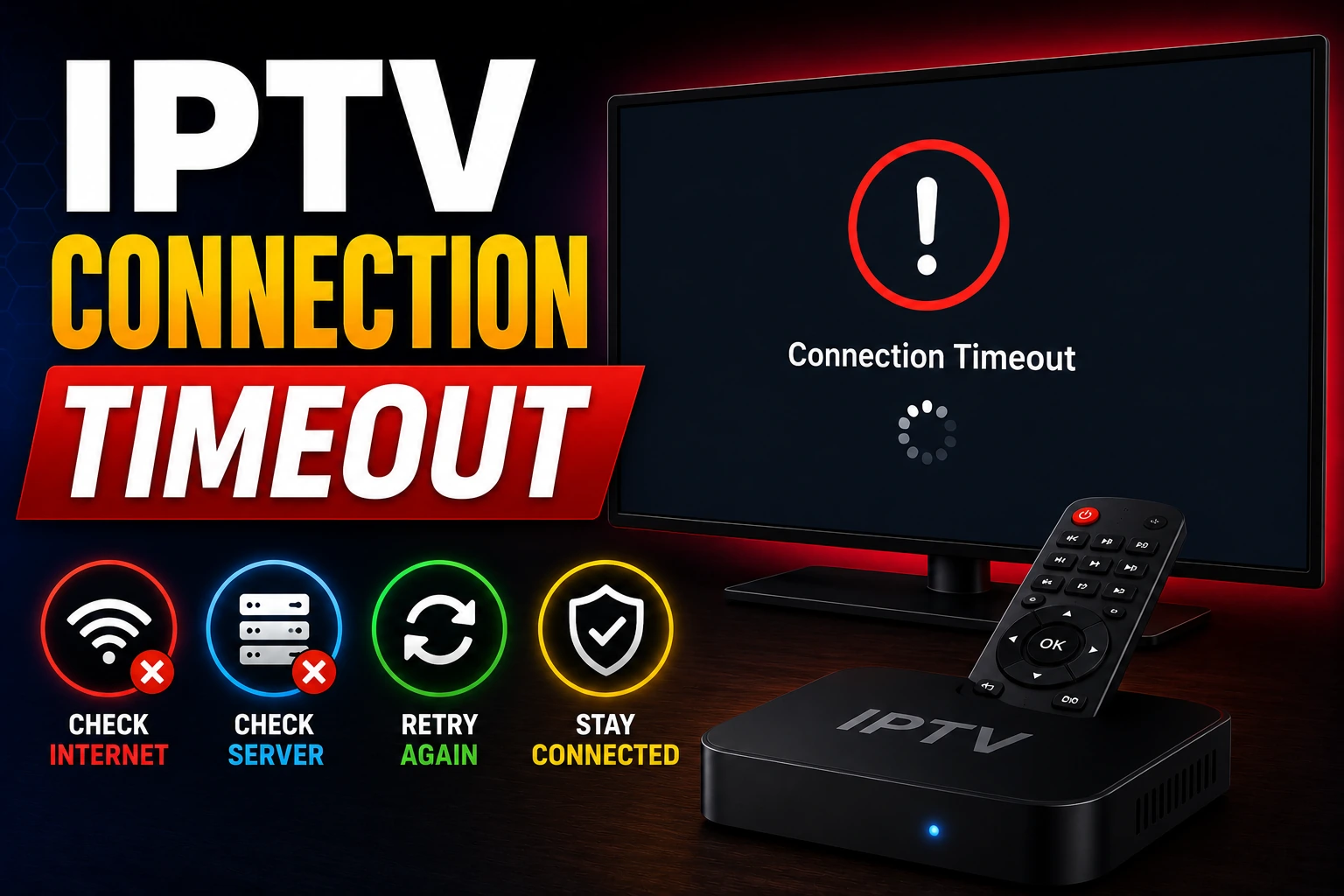
IPTV connection timeout errors prevent you from accessing streams and channels. This comprehensive guide provides proven solutions for fixing timeout issues caused by DNS problems, firewall blocking, network configuration, and server connectivity on all devices.
bolt Quick Fix (Try This First)
- 1. Change DNS to Cloudflare (1.1.1.1) or Google (8.8.8.8)
- 2. Increase timeout setting in IPTV player to 15-20 seconds
- 3. Temporarily disable firewall/antivirus to test
- 4. Restart router and streaming device
If timeout errors persist, follow the detailed fixes below.
What Causes IPTV Connection Timeout
Slow DNS Resolution
ISP's DNS servers are slow or blocking IPTV domains
Firewall Blocking
Firewall or antivirus blocking IPTV connections
Slow Internet
Connection too slow to reach servers within timeout period
ISP Throttling
Internet provider deliberately slowing IPTV traffic
Server Issues
IPTV provider's servers are down or overloaded
Network Configuration
Router settings or network issues preventing connections
How to Fix IPTV Connection Timeout (Step-by-Step)
1 Change DNS Servers
Slow or blocking DNS is the #1 cause of timeout errors. Switch to faster DNS providers.
Recommended DNS Servers:
- • Cloudflare DNS: 1.1.1.1 / 1.0.0.1 (Fastest)
- • Google DNS: 8.8.8.8 / 8.8.4.4 (Reliable)
- • OpenDNS: 208.67.222.222 / 208.67.220.220
How to Change DNS:
- Go to device network settings
- Find DNS settings (usually under Advanced)
- Change from Automatic to Manual
- Enter 1.1.1.1 as primary, 1.0.0.1 as secondary
- Save and restart device
2 Increase Timeout Settings
Default timeout (5-10 seconds) is too short for slower connections.
In IPTV Player Settings:
- Open player settings (TiviMate, IPTV Smarters, etc.)
- Find "Connection Timeout" or "Network Timeout"
- Increase to 15-20 seconds
- For very slow connections, try 30 seconds
- Save and restart app
3 Disable Firewall Temporarily
Firewall or antivirus may be blocking IPTV connections.
- check_circle Temporarily disable Windows Firewall or antivirus
- check_circle Test if IPTV works with firewall off
- check_circle If it works, add IPTV app to firewall exceptions
- check_circle Re-enable firewall after adding exception
4 Use VPN to Bypass ISP Throttling
ISPs often throttle or block IPTV traffic, causing timeouts.
- check_circle Install a fast VPN (ExpressVPN, NordVPN, Surfshark)
- check_circle Connect to VPN server near your location
- check_circle Use WireGuard protocol for best speed
- check_circle Test IPTV with VPN connected
- check_circle See our VPN for IPTV guide
5 Check Internet Speed
Slow internet can't reach servers within timeout period.
- check_circle Run speed test at fast.com or speedtest.net
- check_circle Need minimum 10 Mbps for HD streaming
- check_circle Close bandwidth-heavy apps and downloads
- check_circle Switch to wired Ethernet if using WiFi
- check_circle Contact ISP if speed is significantly lower than plan
6 Restart Router and Device
Network glitches can cause persistent timeout errors.
- check_circle Unplug router for 30 seconds, plug back in
- check_circle Restart streaming device (Firestick, Android box, etc.)
- check_circle Wait 2-3 minutes for full restart
- check_circle Test IPTV connection after restart
7 Check Provider Server Status
Timeout errors can be caused by provider's server issues.
- check_circle Contact provider support to check server status
- check_circle Check provider's social media for outage announcements
- check_circle Ask for alternative server URL if main server is down
- check_circle Wait 30-60 minutes if servers are under maintenance
8 Configure Router Settings
Router configuration can affect IPTV connectivity.
- check_circle Access router settings (usually 192.168.1.1 or 192.168.0.1)
- check_circle Enable UPnP (Universal Plug and Play)
- check_circle Disable SPI Firewall if enabled
- check_circle Set QoS to prioritize streaming traffic
- check_circle Update router firmware to latest version
9 Try Different IPTV Player
Some players handle timeouts better than others.
- play_circle TiviMate - Configurable timeout settings
- play_circle IPTV Smarters Pro - Good connection handling
- play_circle VLC Media Player - Adjustable network caching
- play_circle See our best IPTV players comparison
10 Clear Network Cache
Corrupted network cache can cause persistent timeout errors.
On Windows:
- Open Command Prompt as Administrator
- Run: ipconfig /flushdns
- Run: netsh winsock reset
- Restart computer
On Android/Firestick:
- Settings ? Apps ? Clear cache for IPTV app
- Settings ? Network ? Forget WiFi network
- Reconnect to WiFi
- Restart device
Device-Specific Timeout Fixes
tv Amazon Firestick
- • Settings ? Network ? Change DNS to 1.1.1.1
- • Clear app cache: Settings ? Applications ? Manage Installed Apps
- • Disable VPN if causing issues
- • Use 5GHz WiFi instead of 2.4GHz
- • See Firestick troubleshooting
smartphone Android Devices
- • Settings ? Network ? Private DNS ? dns.google
- • Disable battery optimization for IPTV app
- • Clear app data and cache
- • Disable data saver mode
- • Update Android to latest version
tv Smart TV
- • Network Settings ? DNS ? Manual ? 1.1.1.1
- • Restart TV and router
- • Update TV firmware
- • Use wired Ethernet connection
- • Disable TV's built-in firewall
computer Windows/PC
- • Control Panel ? Network ? Change adapter settings ? DNS
- • Disable Windows Firewall temporarily
- • Run: ipconfig /flushdns in CMD
- • Disable antivirus temporarily to test
- • Use VLC with increased network caching (1000ms)
Prevent IPTV Connection Timeout
tips_and_updates Network Optimization
- • Always use fast DNS (Cloudflare or Google)
- • Keep router firmware updated
- • Use wired connection when possible
- • Enable QoS for streaming priority
- • Maintain minimum 15 Mbps speed
settings Player Configuration
- • Set timeout to 15-20 seconds
- • Increase buffer size
- • Use reliable IPTV player (TiviMate, Smarters)
- • Keep apps updated
- • Clear cache regularly
Frequently Asked Questions
Why does my IPTV keep timing out?
IPTV connection timeout is usually caused by slow internet, DNS issues, firewall blocking, ISP throttling, or server overload. Check internet speed, change DNS to Cloudflare (1.1.1.1), disable firewall temporarily, and use VPN to bypass ISP throttling.
How do I fix IPTV request timed out error?
Fix timeout errors by increasing timeout settings in player (15-20 seconds), changing DNS servers, using wired connection, disabling VPN if causing issues, and checking if provider's servers are online.
What causes IPTV connection timeout?
Timeout errors occur when your device can't reach IPTV servers within the allowed time. Causes include slow internet, DNS problems, firewall/antivirus blocking, network congestion, or provider server issues.
How long should IPTV timeout be set?
Set IPTV timeout to 15-20 seconds for best results. Default 5-10 seconds is too short for slower connections. Increase to 30 seconds if you have very slow internet or distant servers.
Does VPN cause IPTV timeout?
VPN can cause timeouts if server is slow or distant. Use fast VPN with nearby servers, try different VPN locations, or temporarily disable VPN to test. Some VPNs improve connections by bypassing ISP throttling.
Can DNS fix IPTV timeout errors?
Yes, changing DNS to faster servers like Cloudflare (1.1.1.1) or Google (8.8.8.8) can fix timeout errors caused by slow DNS resolution. This is one of the most effective fixes.
Related IPTV Troubleshooting
IPTV Not Working
Complete troubleshooting guide for all IPTV issues
sync_problemFix IPTV Buffering
Stop buffering and improve streaming quality
pause_circleIPTV Freezing
Fix freezing and stuttering streams
link_offM3U URL Not Loading
Fix playlist loading errors
vpn_keyBest VPN for IPTV
Bypass ISP throttling with VPN
play_circleBest IPTV Players
Top players with timeout configuration
Still Having Timeout Issues?
If you've tried all fixes and still experiencing IPTV connection timeout errors, it may be time to switch to a more reliable provider with better server infrastructure.
View Best IPTV Services 2026 arrow_forward