
IPTV Keeps Freezing? Stop Stuttering & Lag (2026)
IPTV freezing, stuttering, or lagging ruins your viewing experience. Whether it's constant pauses, choppy playback, or picture freezes, this comprehensive guide shows you how to fix IPTV freezing issues and achieve smooth, buffer-free streaming on any device.
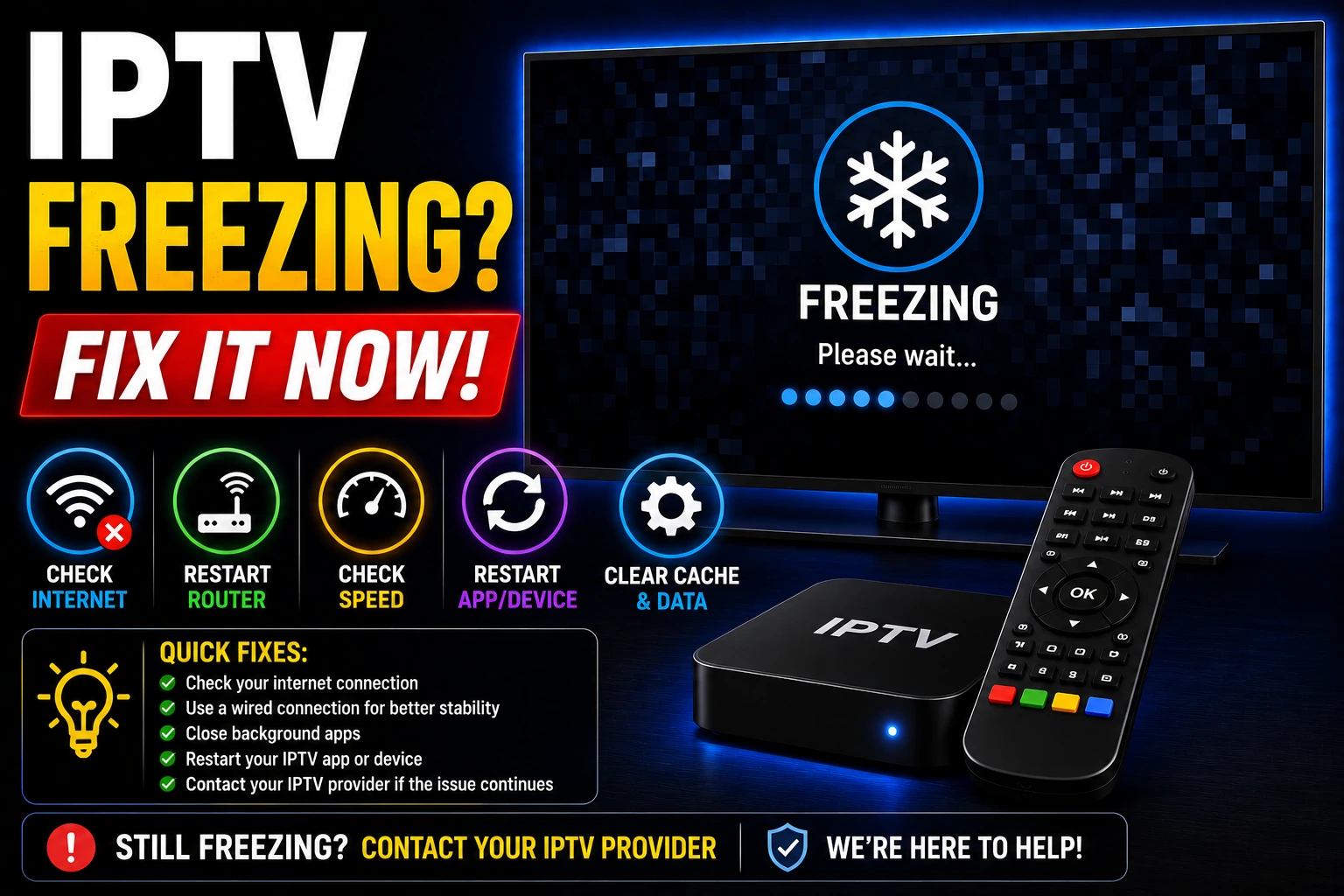
bolt Quick Fix (Try This First)
- 1. Close all other apps and devices using your internet
- 2. Restart your router (unplug for 30 seconds, plug back in)
- 3. Increase buffer size in your IPTV player settings to 15-20 seconds
- 4. Switch to wired Ethernet connection if using WiFi
If freezing continues, follow the detailed fixes below.
Why IPTV Keeps Freezing
Slow Internet Speed
Insufficient bandwidth for streaming quality you're watching
ISP Throttling
Internet provider deliberately slowing down streaming traffic
Weak WiFi Signal
Poor wireless connection causing packet loss and interruptions
Server Overload
IPTV provider's servers overwhelmed with too many users
Device Performance
Underpowered device struggling to decode video streams
Wrong Settings
Incorrect buffer size or hardware acceleration disabled
How to Fix IPTV Freezing (Step-by-Step)
1 Check Your Internet Speed
Verify your connection meets minimum requirements for your streaming quality.
- check_circle Run a speed test at fast.com or speedtest.net
- check_circle SD needs 3-4 Mbps, HD needs 5-10 Mbps, Full HD needs 10-20 Mbps, 4K needs 25-50 Mbps
- check_circle If speed is too low, contact your ISP or upgrade your plan
2 Increase Buffer Size in Your IPTV Player
Larger buffer allows more content to preload, reducing freezing.
For TiviMate:
- Go to Settings ? Playback
- Set Buffer Size to 30-60 seconds
- Enable "Use system decoder"
For IPTV Smarters Pro:
- Settings ? Player Settings
- Set Buffer to "Large" or "Extra Large"
- Enable Hardware Acceleration
3 Enable Hardware Acceleration
Hardware acceleration uses your device's GPU instead of CPU for video decoding, dramatically improving performance.
- check_circle Open your IPTV player settings
- check_circle Find Video/Playback settings
- check_circle Enable "Hardware Acceleration" or "Hardware Decoder"
- check_circle Restart the app and test streaming
4 Switch to Wired Ethernet Connection
WiFi interference causes packet loss and freezing. Ethernet provides stable, consistent speeds.
- check_circle Connect your device directly to router with Ethernet cable
- check_circle Use Cat6 or Cat7 cables for best performance
- check_circle This single change can eliminate 70% of freezing issues
5 Use a VPN to Bypass ISP Throttling
ISPs often throttle IPTV traffic, especially during peak hours. A VPN encrypts your connection and prevents detection.
- check_circle Choose a fast VPN with servers near your location
- check_circle Connect to VPN before starting IPTV
- check_circle Test different server locations for best performance
- check_circle See our VPN for IPTV guide
6 Close Background Apps and Processes
Background apps consume RAM and bandwidth, causing freezing.
- check_circle Close downloads, updates, and cloud backups
- check_circle Stop streaming on other devices
- check_circle Disable automatic updates during streaming
- check_circle On Firestick: Force stop unused apps in Settings
7 Clear App Cache and Data
Accumulated cache can slow down your IPTV player and cause freezing.
On Android/Firestick:
- Go to Settings ? Applications
- Select your IPTV app
- Click "Clear Cache" then "Clear Data"
- Restart the app and re-login
8 Restart Router and Device
A simple restart clears temporary network issues and refreshes connections.
- check_circle Unplug router for 30 seconds, plug back in
- check_circle Restart your streaming device
- check_circle Wait 2-3 minutes before testing IPTV
9 Lower Stream Quality Temporarily
If freezing persists, reducing quality ensures smooth playback while you troubleshoot.
- check_circle Switch from 4K to 1080p or 720p
- check_circle Most players have quality settings in playback menu
- check_circle 720p uses 50% less bandwidth than 1080p
10 Update Your IPTV App and Device Firmware
Outdated software often has bugs and performance issues that cause freezing.
- check_circle Check for IPTV player updates in your app store
- check_circle Update device firmware (Firestick, Android TV, etc.)
- check_circle Clear cache after updating
Advanced Fixes for IPTV Freezing
Change DNS Settings
Slow DNS servers can cause delays and freezing. Switch to faster DNS providers.
Recommended DNS Servers:
- • Google DNS: 8.8.8.8 / 8.8.4.4
- • Cloudflare DNS: 1.1.1.1 / 1.0.0.1
- • OpenDNS: 208.67.222.222 / 208.67.220.220
Try a Different IPTV Player
Some players handle video decoding better than others. Try these alternatives:
- play_circle TiviMate - Best overall with excellent buffer management
- play_circle IPTV Smarters Pro - Great for beginners
- play_circle Perfect Player - Highly customizable
Configure Router QoS Settings
Quality of Service prioritizes IPTV traffic over other network activity.
- Access router settings (usually 192.168.1.1 or 192.168.0.1)
- Find QoS or Traffic Prioritization settings
- Set your streaming device to "High Priority"
- Limit bandwidth for downloads and updates
Upgrade Your Device
Older devices may lack the processing power for modern IPTV streams.
- check_circle Minimum: 2GB RAM, quad-core processor
- check_circle Recommended devices: Nvidia Shield, Fire TV Stick 4K Max, Apple TV 4K
- check_circle Avoid first-gen Fire Sticks and old Android boxes
How to Prevent IPTV Freezing
schedule Stream During Off-Peak Hours
Avoid streaming during peak hours (7-11 PM) when network congestion is highest. Early morning or afternoon streaming typically has fewer issues.
update Keep Everything Updated
Regularly update your IPTV apps, device firmware, and router firmware. Updates often include performance improvements and bug fixes.
router Optimize Your Network
Use 5GHz WiFi instead of 2.4GHz, position router centrally, minimize interference from other devices, and consider mesh WiFi for large homes.
verified Choose Reliable IPTV Providers
Quality providers with multiple servers and good infrastructure have fewer freezing issues. Check our best IPTV services guide.
cleaning_services Regular Maintenance
Clear app cache weekly, restart router monthly, and check for device storage issues. Preventive maintenance reduces freezing problems.
monitor_heart Monitor Your Connection
Run periodic speed tests to ensure consistent performance. If speeds drop significantly, contact your ISP before issues worsen.
Best IPTV Settings to Prevent Freezing
| Setting | Recommended Value | Impact |
|---|---|---|
| Buffer Size | 30-60 seconds | Reduces freezing by preloading content |
| Hardware Acceleration | Enabled | Improves decoding performance |
| Video Decoder | System/Hardware | Better than software decoding |
| Stream Quality | Auto or match your speed | Prevents overloading connection |
| Connection Type | Wired Ethernet | Eliminates WiFi interference |
| DNS | Google or Cloudflare | Faster resolution times |
help Still Experiencing Freezing?
If you've tried all these fixes and IPTV still freezes, the issue may be with your IPTV provider's servers or infrastructure.
- arrow_right Contact your IPTV provider's support team
- arrow_right Ask if they have alternative server URLs
- arrow_right Consider switching to a more reliable provider
- arrow_right Check our best IPTV services for recommendations
Frequently Asked Questions
Why does my IPTV keep freezing?
IPTV freezing is usually caused by slow internet speed, ISP throttling, server overload, device performance issues, or incorrect player settings. Check your internet speed, increase buffer settings, and ensure your device meets minimum requirements.
How do I stop IPTV from stuttering?
Stop IPTV stuttering by increasing buffer size in player settings, enabling hardware acceleration, closing background apps, using wired connection instead of WiFi, and using a VPN to avoid ISP throttling.
What internet speed do I need for IPTV?
For SD quality: 3-4 Mbps, HD quality: 5-10 Mbps, Full HD: 10-20 Mbps, 4K: 25-50 Mbps. These are per stream, so multiple devices need more bandwidth.
Does VPN help with IPTV freezing?
Yes, a VPN can help if your ISP is throttling IPTV traffic. It encrypts your connection and prevents ISP from detecting and slowing down streaming. Use a fast VPN with servers near your location.
Why does IPTV freeze at night?
IPTV freezing at night is usually due to network congestion during peak hours when many people are streaming. Your ISP may also throttle bandwidth during high-usage times. Consider using a VPN or upgrading your internet plan.
How do I increase buffer on IPTV?
Increase IPTV buffer in your player settings. For TiviMate: Settings ? Playback ? Buffer size. For IPTV Smarters: Settings ? Player Settings ? Buffer. Set to 10-20 seconds for best results.
IPTV provider we recommend
Freezing under load points at the provider, not your hardware. This one prioritises stable servers over channel count, which is the trade-off that matters when the stream has to survive a live match.
starFavIPTV — best for server stability during live sports
- checkBuilt around server stability for live sport rather than raw channel count
- checkStable 4K servers
- checkFull sports package access, EPG guide included
- checkMulti-device support with 24/7 support during the trial
Also worth testing: StrongIPTV — the alternative if channel breadth and PPV matter more to you than server stability. Both offer a 24-hour free trial, so the two can be tested side by side before you commit.
Affiliate disclosure: both providers above are affiliate partners — we may earn a commission if you subscribe through these links, at no extra cost to you. We do not sell IPTV subscriptions ourselves, and the trial terms are the providers’ own.
Related Articles
IPTV Buffering Fix
Complete guide to stop IPTV buffering with 15 proven solutions
IPTV Not Working
Troubleshoot common IPTV connection and playback issues
VPN for IPTV
Best VPNs to bypass ISP throttling and improve streaming
Best IPTV Players
Compare top IPTV players with best buffer management