
Setup IPTV on Firestick Complete Guide 2026
Amazon Firestick is one of the most popular devices for IPTV streaming. This comprehensive guide walks you through every step of installing and configuring IPTV on your Firestick, from enabling unknown sources to optimizing playback settings.
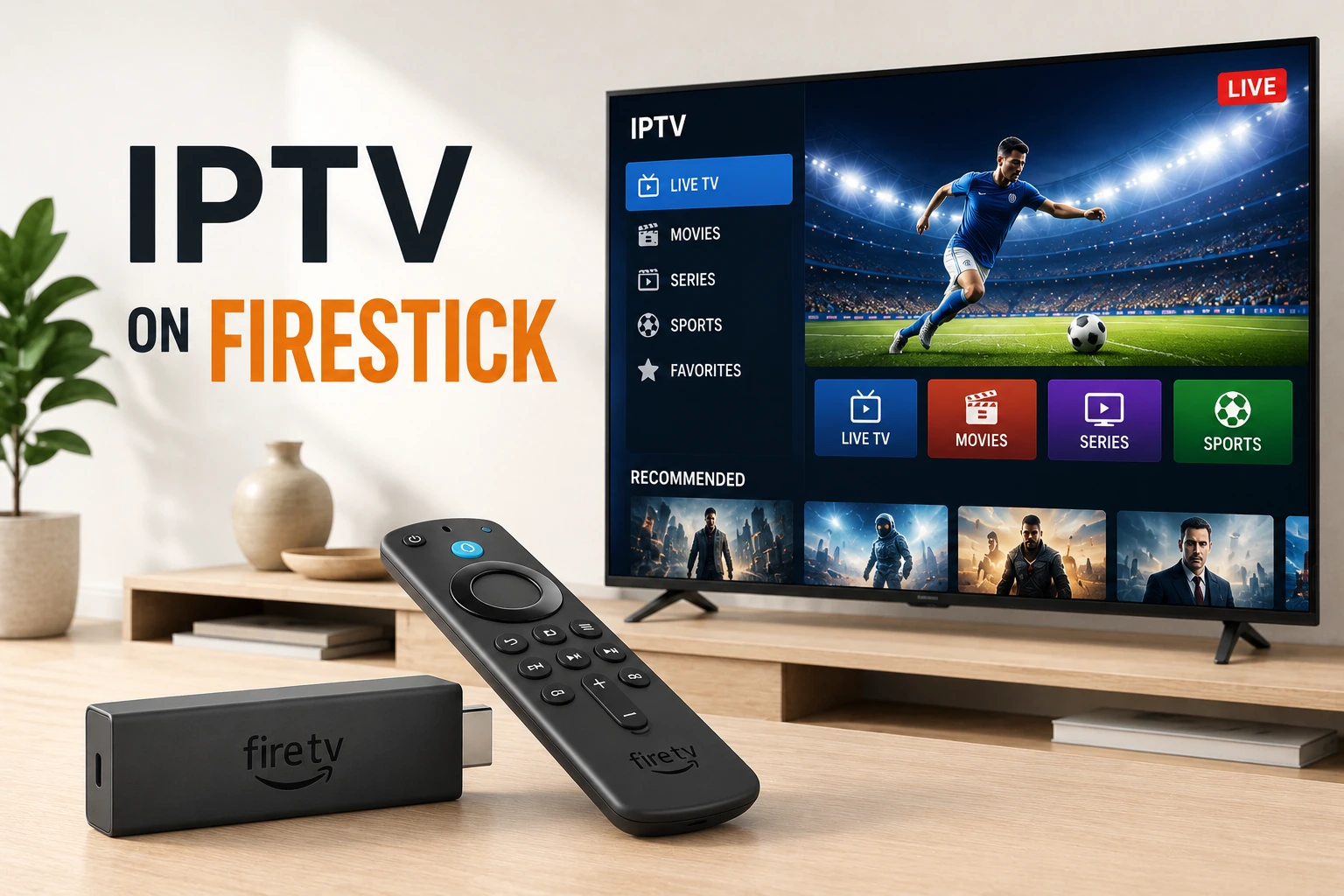
checklist Quick Setup Steps
- 1. Enable "Apps from Unknown Sources" in Firestick settings
- 2. Install Downloader app from Amazon Appstore
- 3. Download your chosen IPTV player (TiviMate recommended)
- 4. Install the IPTV app
- 5. Enter your IPTV service credentials or M3U URL
- 6. Configure EPG and settings
- 7. Start watching!
What You'll Need
Hardware
- • Amazon Firestick (any generation)
- • Fire TV Stick 4K (recommended for 4K content)
- • Stable internet connection (10+ Mbps)
- • TV with HDMI port
Software & Credentials
- • Active IPTV subscription
- • M3U URL or Xtream Codes login
- • EPG URL (optional but recommended)
- • Amazon account
Step 1: Enable Apps from Unknown Sources
Before installing third-party IPTV apps, you need to enable installation from unknown sources. This is a built-in Amazon feature and doesn't void your warranty.
1. Go to Firestick Home Screen
Navigate to the top menu and select "Settings" (gear icon)
2. Select "My Fire TV"
Scroll down and click on "My Fire TV" or "Device"
3. Choose "Developer Options"
Click on "Developer Options" in the menu
4. Enable "Apps from Unknown Sources"
Turn on "Apps from Unknown Sources" and confirm the warning
Note: You may also need to enable "ADB Debugging" in the same menu for some apps.
Step 2: Install Downloader App
Downloader is a free app that lets you download and install IPTV players on your Firestick.
1. Search for Downloader
Press the search icon (magnifying glass) and type "Downloader"
2. Select Downloader by AFTVnews
Choose the official Downloader app (orange icon)
3. Download and Install
Click "Download" or "Get" and wait for installation to complete
4. Open Downloader
Click "Open" to launch the app
Step 3: Download IPTV Player
Recommended IPTV Players for Firestick
TiviMate (Recommended)
Best overall IPTV player for Firestick with excellent EPG, recording, and remote control support.
Download URL: https://tivimate.com/download
IPTV Smarters Pro
Popular cross-platform player with Xtream Codes support and user-friendly interface.
Download URL: https://www.iptvsmarters.com/download
Download Steps
1. Open Downloader App
Launch Downloader and allow permissions if prompted
2. Enter Download URL
Click the URL field and enter the download link for your chosen player
3. Click "Go"
Press "Go" and wait for the APK file to download
4. Install the App
Click "Install" when prompted and wait for installation to complete
Step 4: Configure Your IPTV Service
Option A: M3U URL Setup
1. Open Your IPTV Player
Launch TiviMate or your chosen player
2. Add Playlist
Select "Add Playlist" or similar option
3. Choose "URL" Method
Select URL/M3U option (not file)
4. Enter M3U URL
Paste your M3U URL from your IPTV provider
5. Add EPG URL (Optional)
Enter EPG URL if provided by your service
Option B: Xtream Codes Setup
1. Select Xtream Codes Login
Choose "Xtream Codes API" option
2. Enter Server URL
Input the server address (without http://)
3. Enter Username
Type your Xtream Codes username
4. Enter Password
Type your Xtream Codes password
5. Click "Add"
Save and wait for channels to load
Optimization Tips for Firestick
speed Use Ethernet Connection
Connect Firestick via Ethernet adapter for more stable streaming. WiFi can cause buffering, especially for 4K content.
memory Clear Cache Regularly
Go to Settings > Applications > Manage Installed Applications > [Your IPTV App] > Clear Cache to free up memory and improve performance.
tune Adjust Buffer Settings
In your IPTV player settings, increase buffer size to 10-20 seconds to reduce stuttering and freezing.
display_settings Disable Hardware Acceleration
If experiencing black screens or playback issues, try disabling hardware acceleration in player settings.
close Close Background Apps
Force stop unused apps to free up RAM. Hold Home button > Apps > select app > Force Stop.
Common Issues & Solutions
App Won't Install
Solution: Ensure "Apps from Unknown Sources" is enabled. Try redownloading the APK file.
Buffering Issues
Solution: Check internet speed (need 10+ Mbps), use Ethernet, increase buffer size, or try a different server.
Channels Not Loading
Solution: Verify M3U URL or Xtream Codes credentials. Check if IPTV subscription is active.
EPG Not Showing
Solution: Add EPG URL in playlist settings. Wait 10-15 minutes for EPG to download and update.
Remote Control Not Working
Solution: Replace remote batteries. Unpair and re-pair remote in Firestick settings.
Frequently Asked Questions
How do I setup IPTV on Firestick?
To setup IPTV on Firestick: 1) Enable Apps from Unknown Sources in Settings, 2) Install Downloader app from Amazon Appstore, 3) Download your IPTV player (TiviMate, IPTV Smarters), 4) Install the app, 5) Enter your IPTV credentials or M3U URL, 6) Start watching.
What is the best IPTV app for Firestick?
TiviMate is widely considered the best IPTV player for Firestick due to its intuitive interface, EPG support, and remote-friendly navigation. IPTV Smarters Pro is another excellent option with multi-device support.
Do I need to jailbreak Firestick for IPTV?
No, you don't need to jailbreak Firestick for IPTV. Simply enable 'Apps from Unknown Sources' in settings to install third-party IPTV apps. This is a built-in Amazon feature and doesn't void your warranty.
link Related Guides
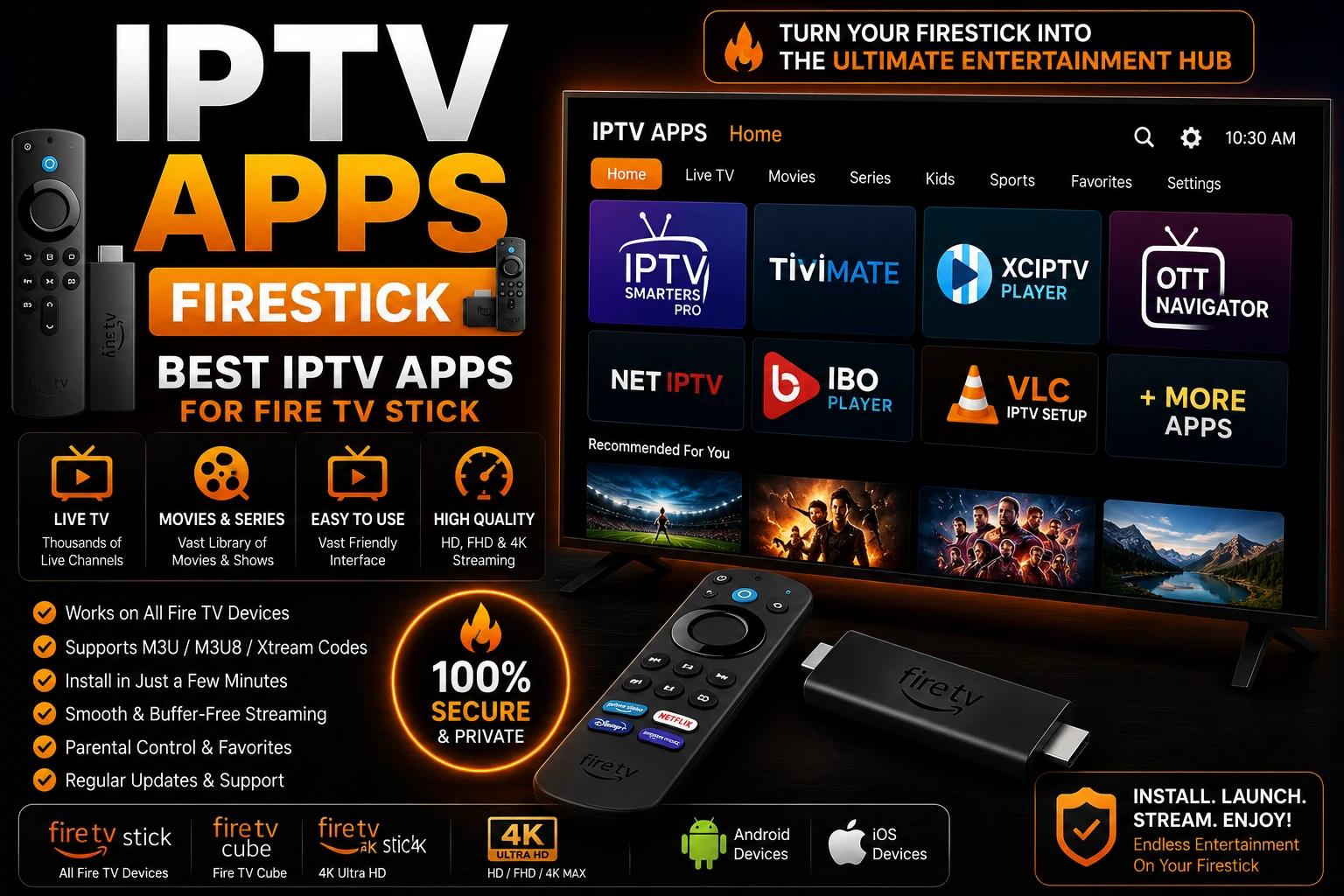
Best IPTV Apps for Firestick
Top IPTV players optimized for Amazon Firestick
TiviMate Review
Complete review of the best Firestick IPTV player
Fix IPTV Buffering
Eliminate buffering on Firestick
Best IPTV Services
Top-rated IPTV providers for Firestick