
Fix IPTV Playlist Error - Complete Guide 2026
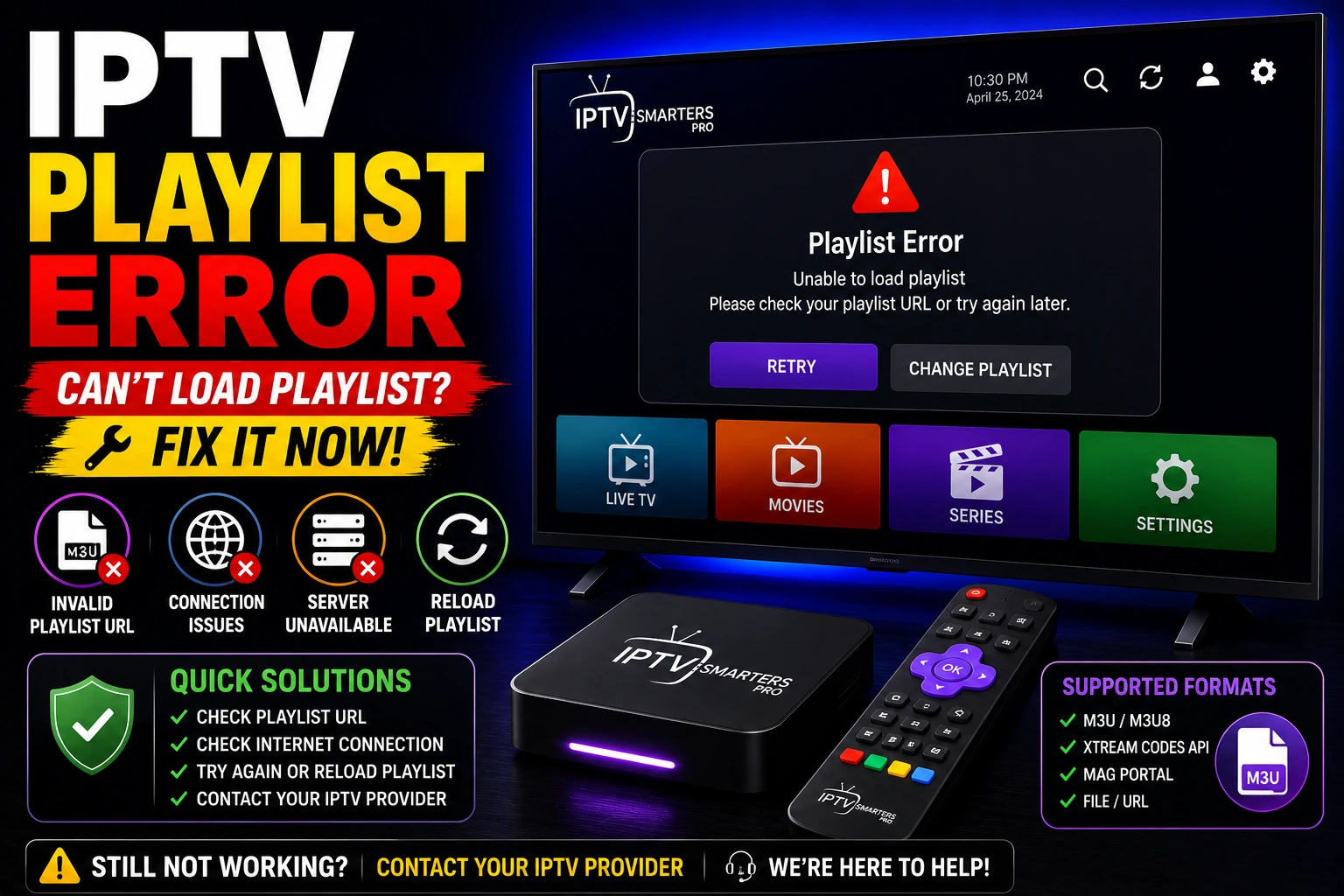
IPTV playlist errors prevent you from loading channels and streams. This comprehensive guide covers all playlist issues including M3U parse errors, invalid format, loading failures, and corrupted playlists with proven solutions for all devices and players.
bolt Quick Fix (Try This First)
- 1. Re-download fresh M3U playlist from your provider
- 2. Verify subscription is active and not expired
- 3. Check playlist URL is complete and correct
- 4. Try loading playlist in different IPTV player (VLC, TiviMate)
If playlist errors persist, follow the detailed fixes below.
Common IPTV Playlist Errors
Parse Error
Playlist format is invalid or corrupted, player can't read M3U file
Failed to Load
Playlist URL is incorrect, expired, or server is unreachable
Invalid Format
Missing #EXTM3U header or incorrect file structure
Empty Playlist
Playlist loads but contains no channels or streams
Corrupted File
M3U file is damaged or has encoding issues
Access Denied
Subscription expired or authentication failed
How to Fix IPTV Playlist Error (Step-by-Step)
1 Verify Playlist URL Format
Incorrect or incomplete URL is the most common cause of playlist errors.
Correct M3U URL Format:
http://provider.com:8080/get.php?username=user&password=pass&type=m3u_plus&output=ts
- check_circle Ensure URL starts with http:// or https://
- check_circle Check username and password are correct
- check_circle Verify no spaces or line breaks in URL
- check_circle Copy URL directly from provider's email or panel
2 Check M3U File Format
M3U files must follow specific format rules to work properly.
Valid M3U Structure:
#EXTM3U
#EXTINF:-1,Channel Name
http://stream-url.com/channel1
#EXTINF:-1,Another Channel
http://stream-url.com/channel2- check_circle First line must be #EXTM3U
- check_circle Each channel needs #EXTINF line before URL
- check_circle Stream URLs must be complete and valid
- check_circle Open in text editor (Notepad++) to check format
3 Fix File Encoding Issues
Wrong encoding causes parse errors and special character problems.
Convert to UTF-8 Encoding:
- Open M3U file in Notepad++ or VS Code
- Go to Encoding menu
- Select "Convert to UTF-8" or "UTF-8 without BOM"
- Save file and reload in IPTV player
4 Verify Subscription Status
Expired or inactive subscriptions cause playlist loading failures.
- check_circle Log into provider's customer panel
- check_circle Check subscription expiration date
- check_circle Verify account status is "Active"
- check_circle Renew subscription if expired
- check_circle Contact provider if payment processed but inactive
5 Re-Download Fresh Playlist
Corrupted downloads or outdated playlists need to be replaced.
- check_circle Delete old M3U file from device
- check_circle Log into provider's panel
- check_circle Download new M3U playlist file
- check_circle Or copy fresh M3U URL for remote loading
- check_circle Load new playlist in IPTV player
6 Try Different IPTV Player
Some players handle playlist formats better than others.
- play_circle VLC Media Player - Best for testing M3U files
- play_circle TiviMate - Excellent playlist parsing
- play_circle IPTV Smarters Pro - Handles various formats
- play_circle Perfect Player - Good error reporting
7 Fix DNS and Network Issues
DNS problems prevent playlist URLs from resolving correctly.
- check_circle Change DNS to Cloudflare (1.1.1.1) or Google (8.8.8.8)
- check_circle Restart router and device
- check_circle Disable VPN temporarily to test
- check_circle Check internet connection is stable
- check_circle See connection timeout fixes
8 Remove Special Characters
Special characters in channel names can cause parse errors.
- check_circle Open M3U file in text editor
- check_circle Remove or replace special characters: & < > " '
- check_circle Replace & with "and" in channel names
- check_circle Remove emojis and non-standard characters
- check_circle Save and reload playlist
9 Check Provider Server Status
Provider's servers may be down or under maintenance.
- check_circle Contact provider support via email or Telegram
- check_circle Check provider's social media for announcements
- check_circle Ask for alternative server URL
- check_circle Wait 1-2 hours if maintenance is scheduled
10 Use Xtream Codes Instead
Xtream Codes API is more reliable than M3U playlists.
- check_circle Ask provider for Xtream Codes credentials
- check_circle You'll need: Server URL, Username, Password
- check_circle Enter credentials in player's Xtream login
- check_circle Xtream avoids M3U parsing issues entirely
- check_circle See Xtream Codes guide
Fix Playlist Errors by Player
play_circle TiviMate Playlist Error
- • Settings ? Playlists ? Remove old playlist
- • Add playlist again with fresh URL
- • Enable "Update channels automatically"
- • Clear app cache if parse error persists
- • Try both M3U URL and Xtream Codes login
play_circle IPTV Smarters Playlist Error
- • Use "Login with Xtream Codes API" instead of M3U
- • If using M3U, select "Add M3U URL" not file upload
- • Clear app data: Settings ? Apps ? Clear Data
- • Reinstall app if "Failed to Authorize" error
- • See Smarters authorization fix
play_circle VLC Playlist Error
- • Media ? Open Network Stream ? Paste M3U URL
- • Or Media ? Open File ? Select downloaded M3U
- • Check Tools ? Messages for detailed error info
- • Ensure M3U file encoding is UTF-8
- • VLC shows specific line numbers for parse errors
play_circle Perfect Player Playlist Error
- • Settings ? General ? Playlist ? Remove old
- • Add new playlist with correct URL format
- • Enable "Auto update playlists"
- • Check "Show detailed error messages" for debugging
- • Perfect Player is strict about M3U format
How to Validate M3U Playlist
Manual Validation Steps
1. Open in Text Editor
Use Notepad++, VS Code, or any text editor to inspect the file.
2. Check Header
First line must be exactly: #EXTM3U
3. Verify Channel Format
Each channel should have:
- • #EXTINF line with channel info
- • Stream URL on next line
- • No blank lines between them
4. Check URLs
All stream URLs should:
- • Start with http:// or https://
- • Be complete (no truncated URLs)
- • Have no spaces or line breaks
5. Test in VLC
VLC provides the best error reporting for M3U validation.
Common M3U Parse Errors & Solutions
Error: "Missing #EXTM3U header"
Solution: Add #EXTM3U as the very first line of the file.
Error: "Invalid URL format"
Solution: Ensure all URLs start with http:// or https:// and are complete.
Error: "Parse error at line X"
Solution: Go to that line number in text editor and check for special characters or formatting issues.
Error: "Encoding not supported"
Solution: Convert file to UTF-8 encoding using Notepad++ or text editor.
Error: "Empty playlist"
Solution: File may be corrupted or subscription expired. Re-download from provider.
Error: "Failed to load playlist"
Solution: Check internet connection, DNS settings, and verify URL is accessible.
Prevent IPTV Playlist Errors
tips_and_updates Best Practices
- • Use Xtream Codes API instead of M3U when possible
- • Keep subscription active and renewed
- • Save backup copy of working playlist
- • Use reliable IPTV players (TiviMate, Smarters)
- • Update playlists regularly from provider
shield_check Maintenance Tips
- • Don't edit M3U files unless necessary
- • Use UTF-8 encoding if editing
- • Test in VLC before using in other players
- • Keep provider contact info handy
- • Monitor subscription expiration dates
Frequently Asked Questions
Why is my IPTV playlist not working?
IPTV playlist errors occur due to invalid M3U format, expired subscription, incorrect URL, server issues, or player compatibility problems. Check playlist format, verify subscription status, ensure correct URL, and try different IPTV player.
How do I fix IPTV playlist parse error?
Fix parse errors by validating M3U file format, removing special characters, checking file encoding (UTF-8), ensuring proper line breaks, and using text editor to fix syntax errors. Re-download playlist from provider if corrupted.
What causes IPTV playlist failed to load?
Playlist loading fails due to wrong URL format, expired links, DNS issues, firewall blocking, or server downtime. Verify URL is correct, check subscription validity, change DNS to 1.1.1.1, and contact provider for updated playlist.
How do I validate IPTV M3U playlist?
Validate M3U playlist by opening in text editor, checking for #EXTM3U header, verifying stream URLs are complete, ensuring proper formatting, and testing in multiple players like VLC or TiviMate.
Can corrupted playlist be fixed?
Yes, fix corrupted playlists by re-downloading from provider, editing in text editor to fix syntax errors, removing invalid entries, converting encoding to UTF-8, or using online M3U validators to identify issues.
Why does IPTV say invalid playlist format?
Invalid format errors occur when playlist lacks #EXTM3U header, has incorrect file extension, contains syntax errors, or uses unsupported encoding. Ensure file starts with #EXTM3U, has .m3u extension, and uses UTF-8 encoding.
Related IPTV Troubleshooting
M3U URL Not Loading
Fix M3U URL loading and connection issues
errorIPTV Not Working
Complete troubleshooting for all IPTV issues
lockSmarters Authorization
Fix IPTV Smarters login errors
codeXtream Codes Guide
Use Xtream instead of M3U playlists
play_circleBest IPTV Players
Players with best playlist support
scheduleConnection Timeout
Fix timeout errors when loading playlists
Tired of Playlist Errors?
Switch to a reliable IPTV provider with stable servers, Xtream Codes support, and excellent playlist management. No more parse errors or loading failures.
View Best IPTV Services 2026 arrow_forward